Setup / Activate Smart Buddy

Download the app from the Google or Apple app store now to explore the full suite of features as a parent.

How to Setup Smart Buddy

Follow the guides below to setup the Smart Buddy.

Linking of Smart Buddy

phone frame
slider
slider
slider
slider
slider
slider
slider
1
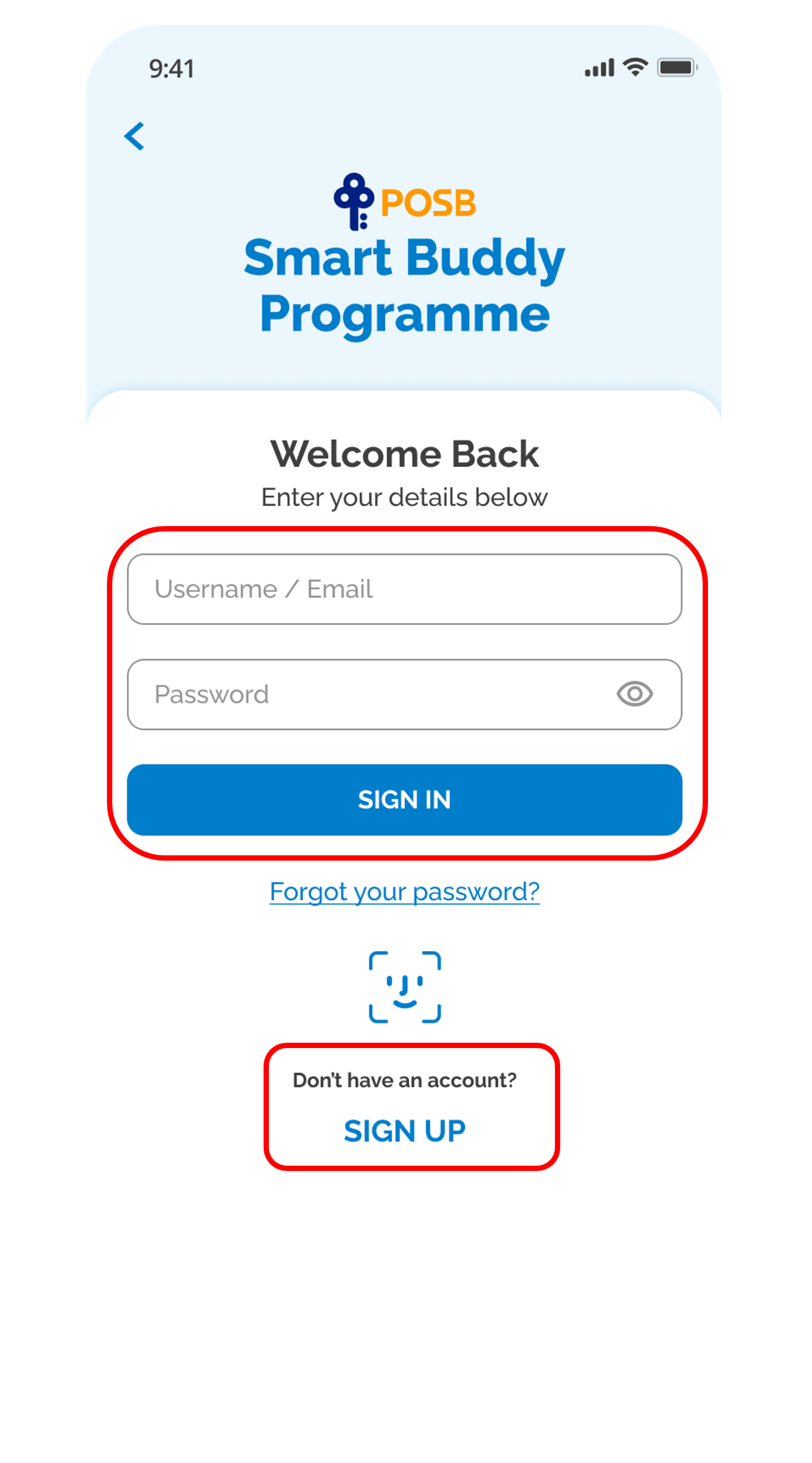
Step 1
Sign up or login to begin.
2
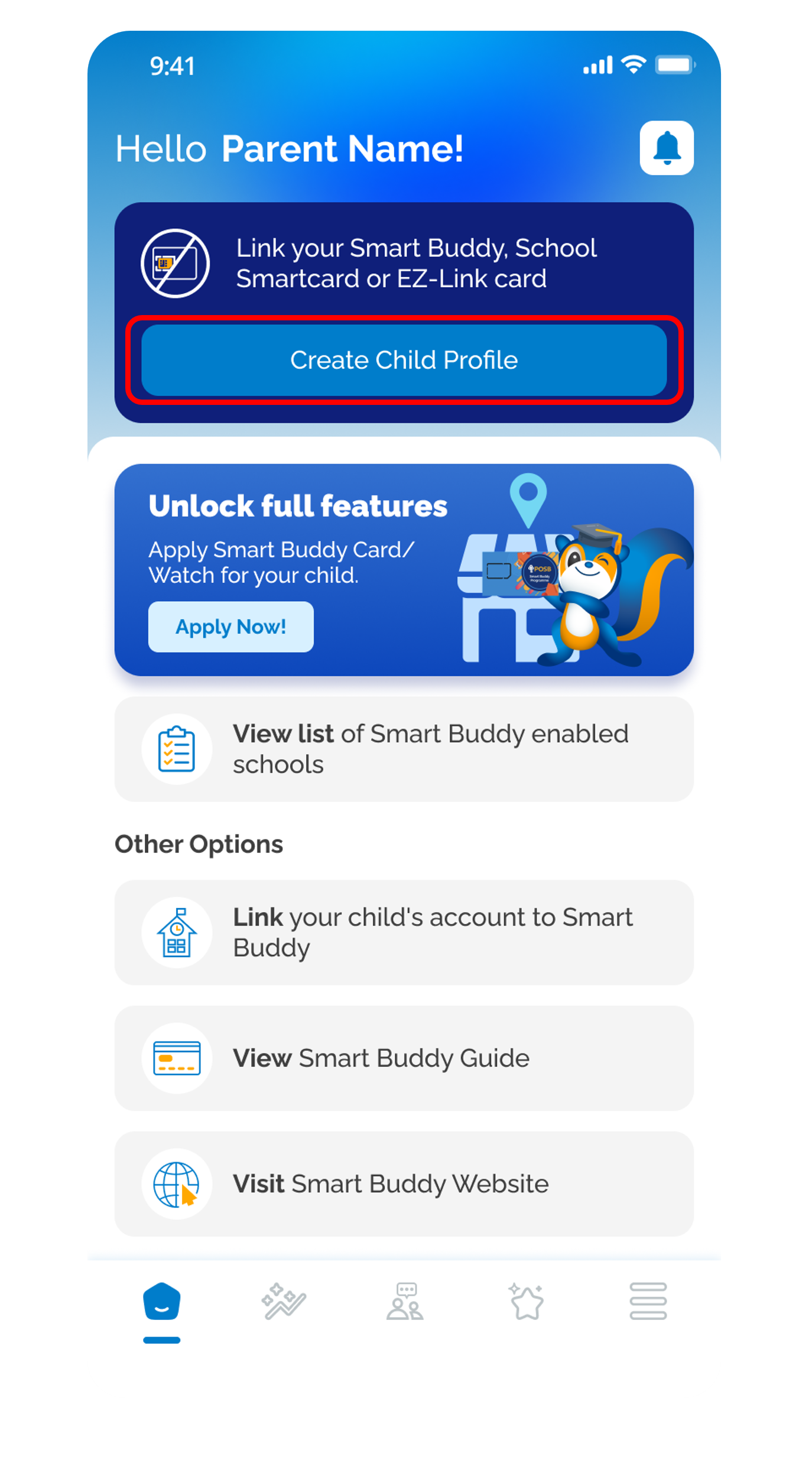
Step 2
Tap on Create Child Profile.
3
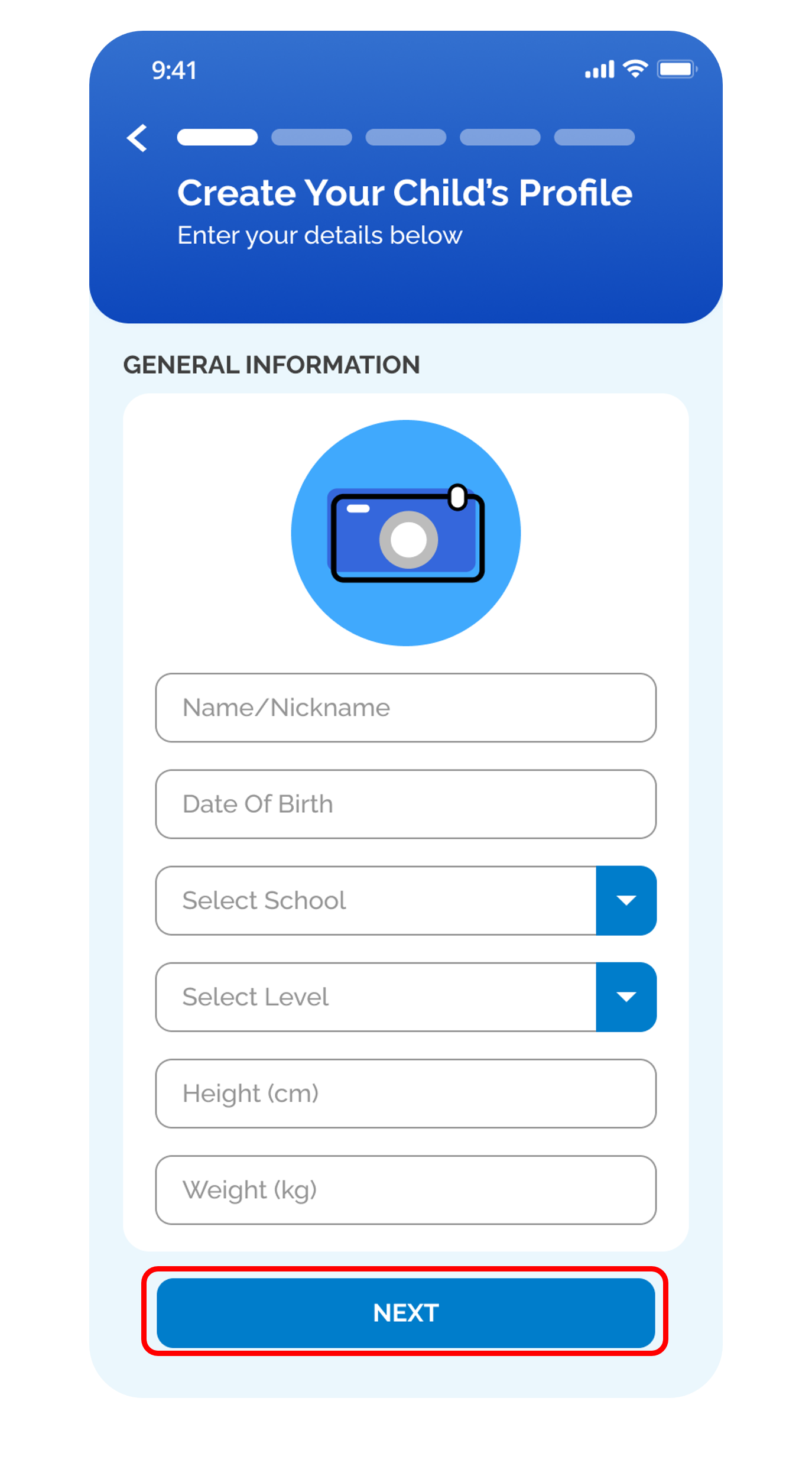
Step 3
Enter the details of your child then tap on Next.
4
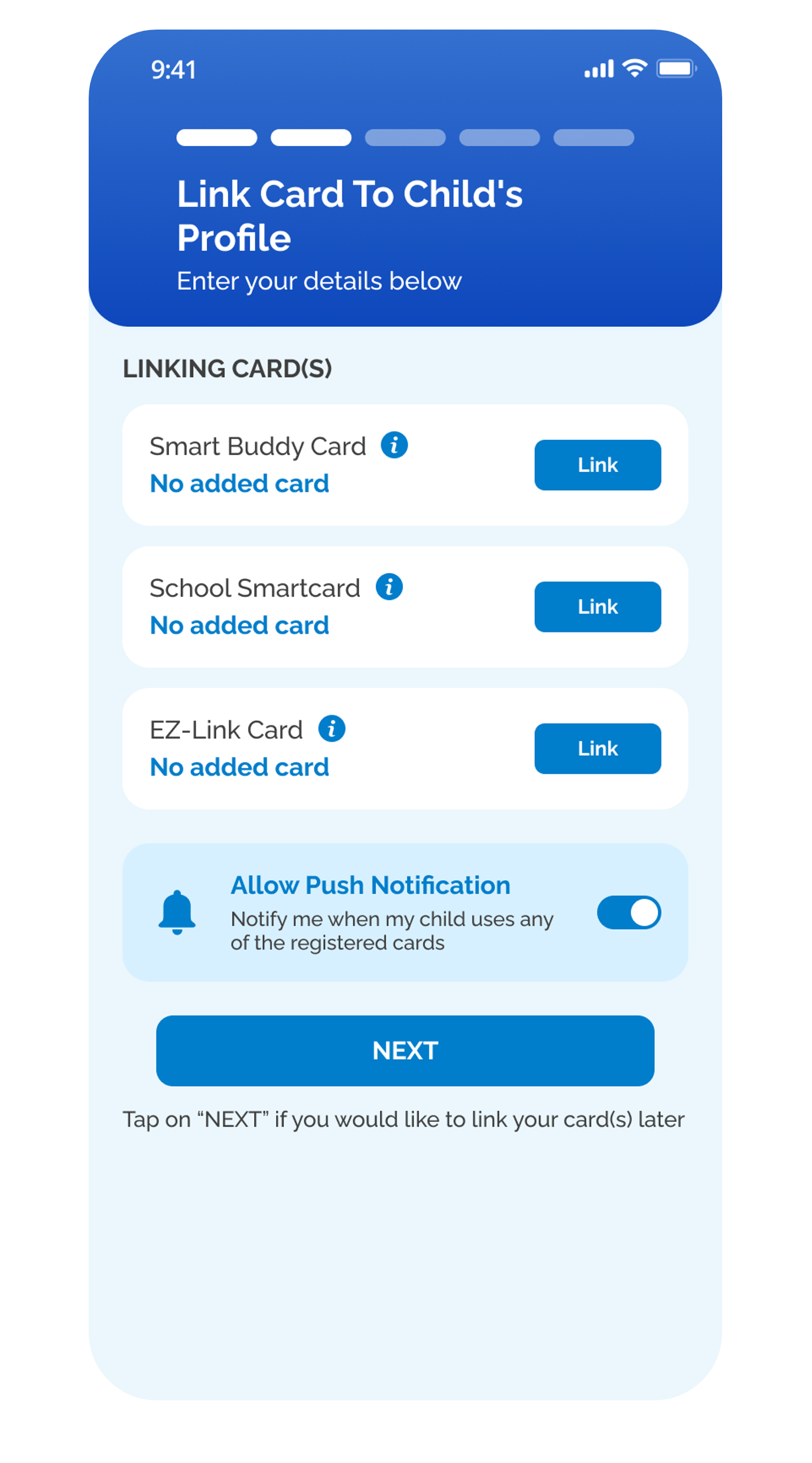
Step 4
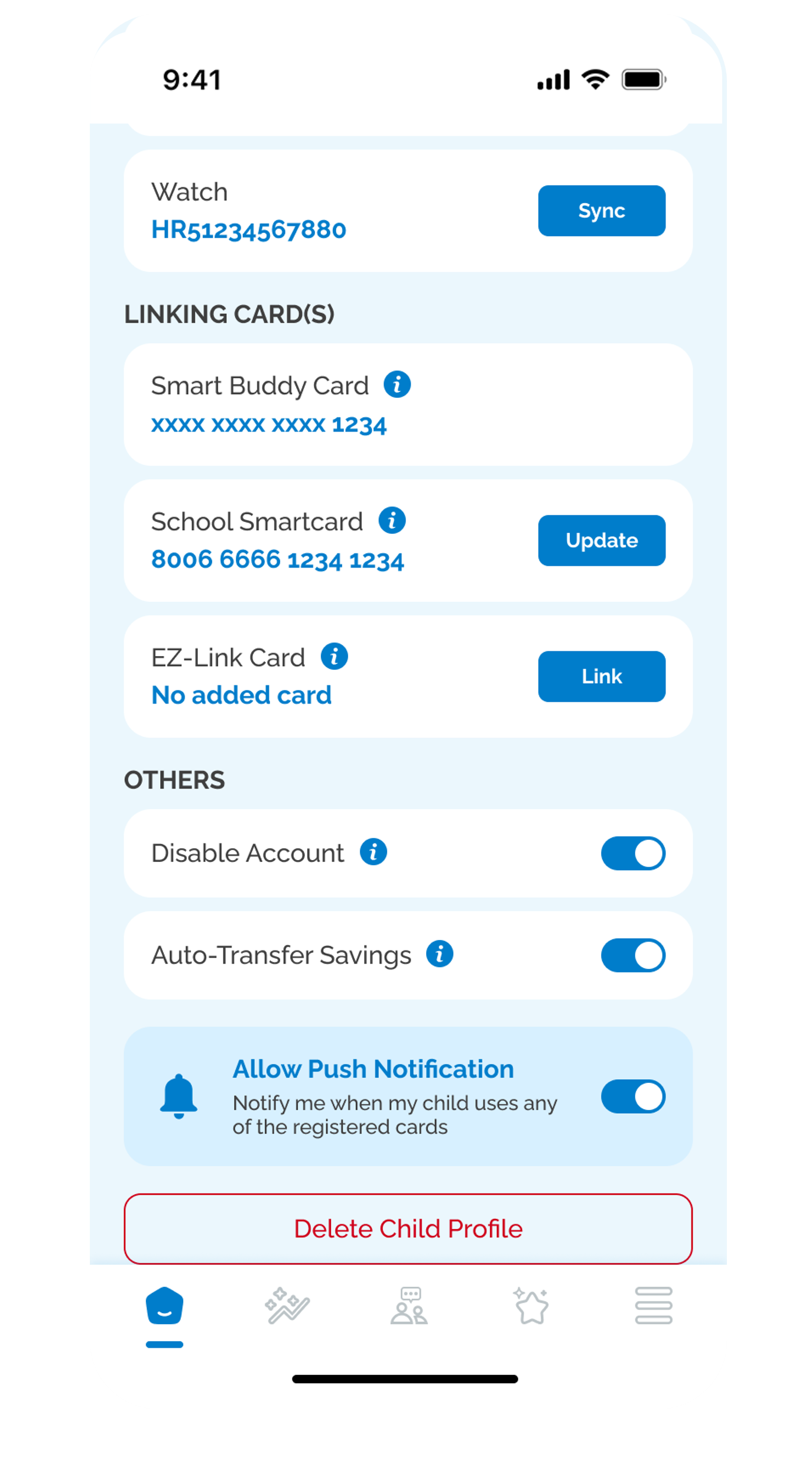
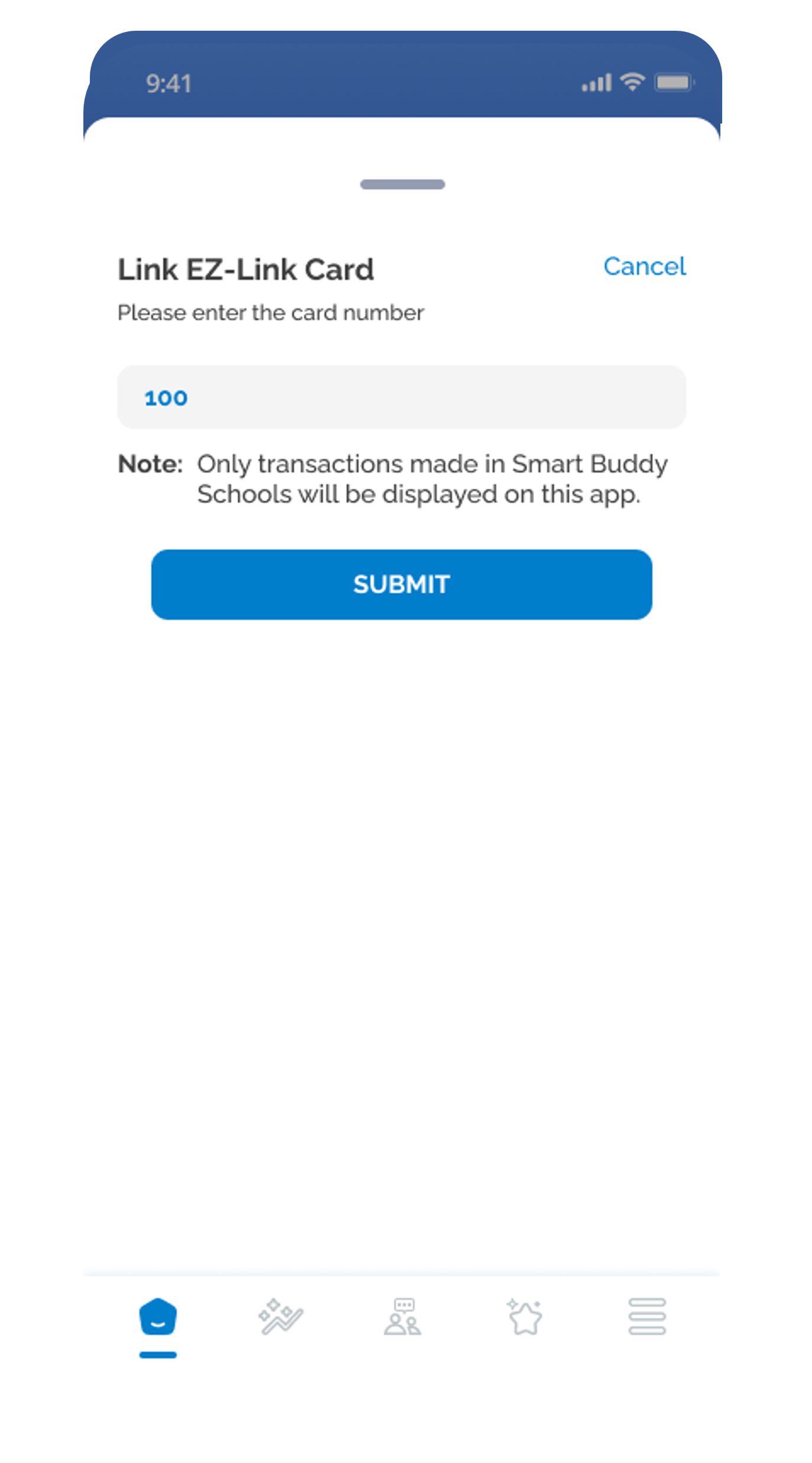
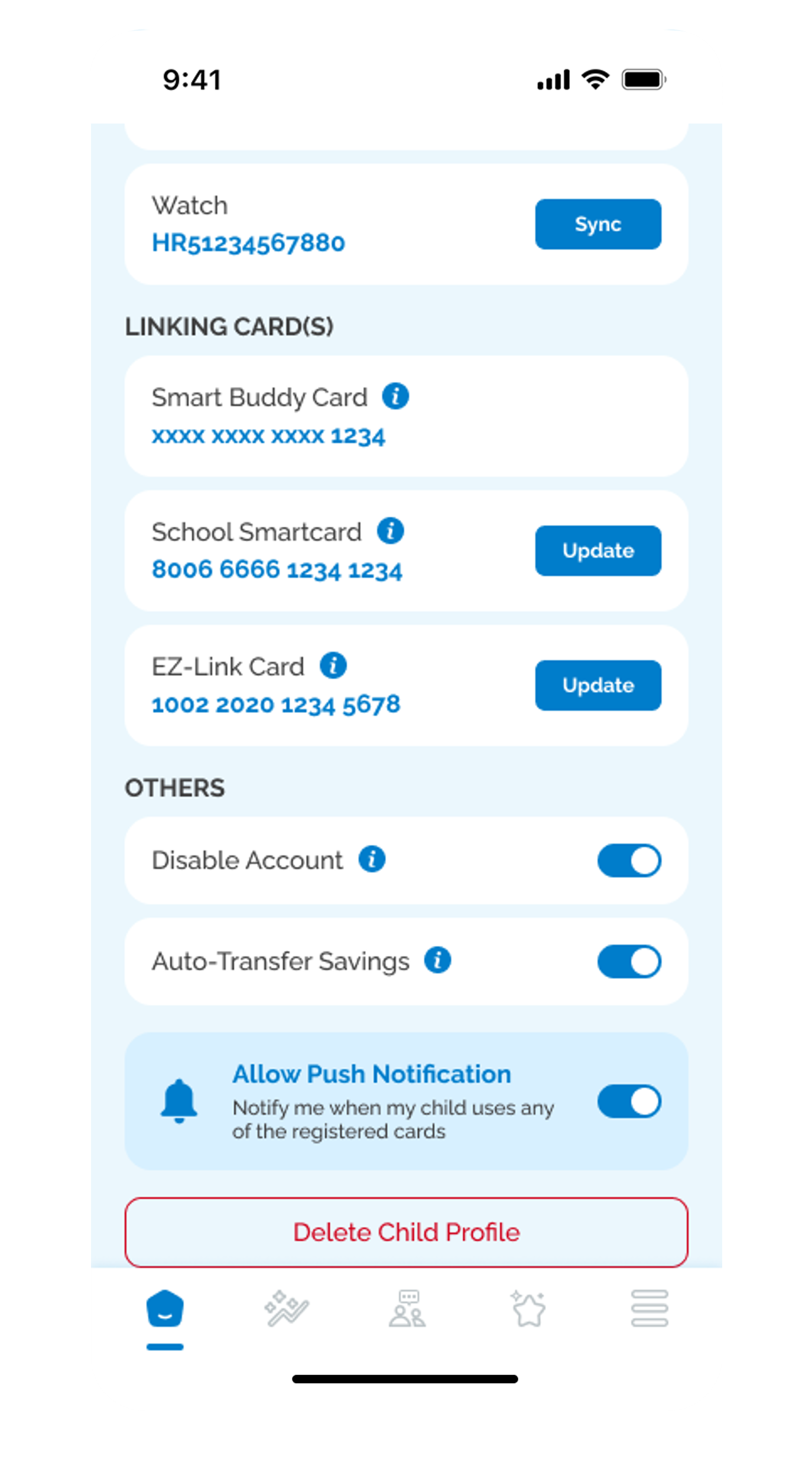
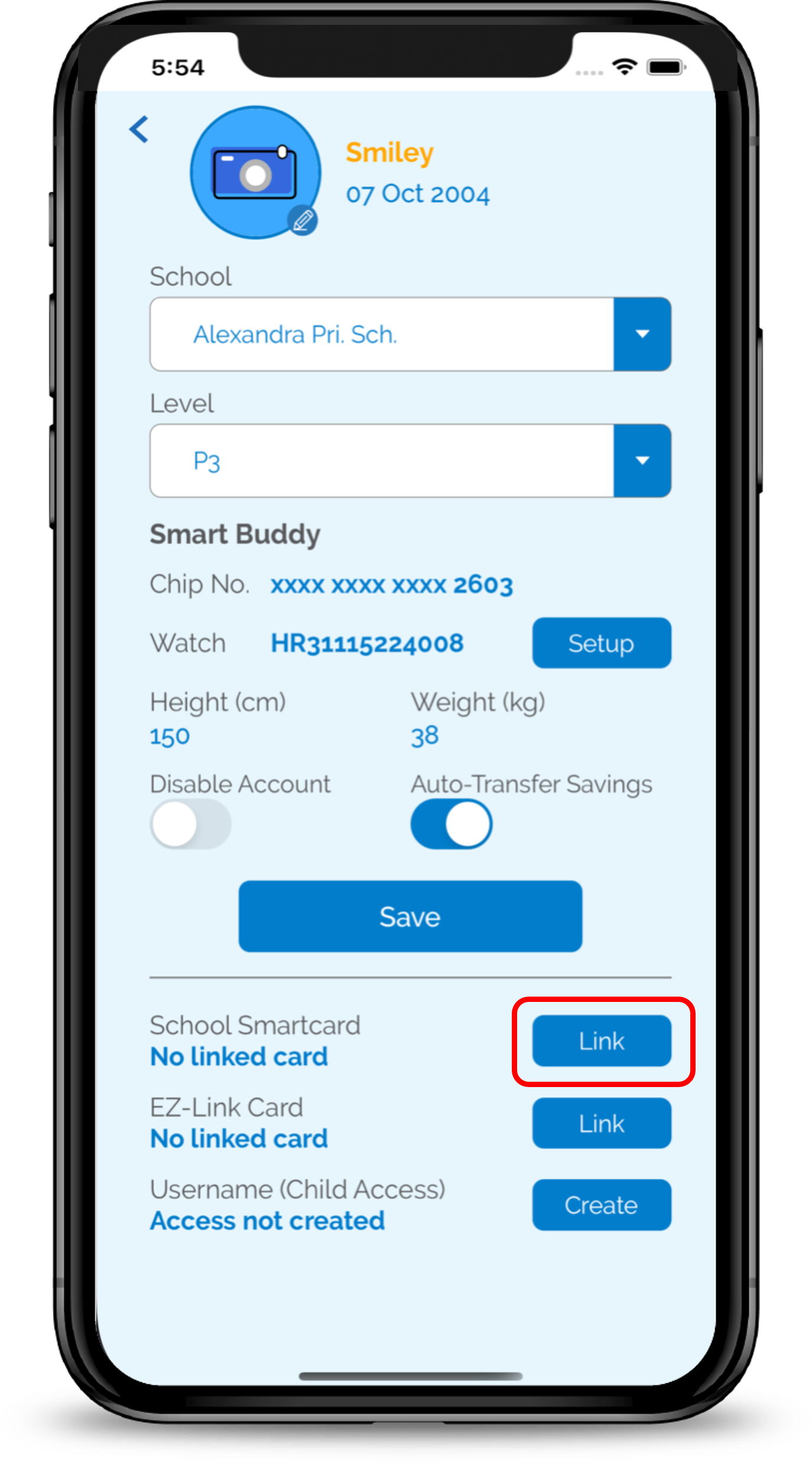
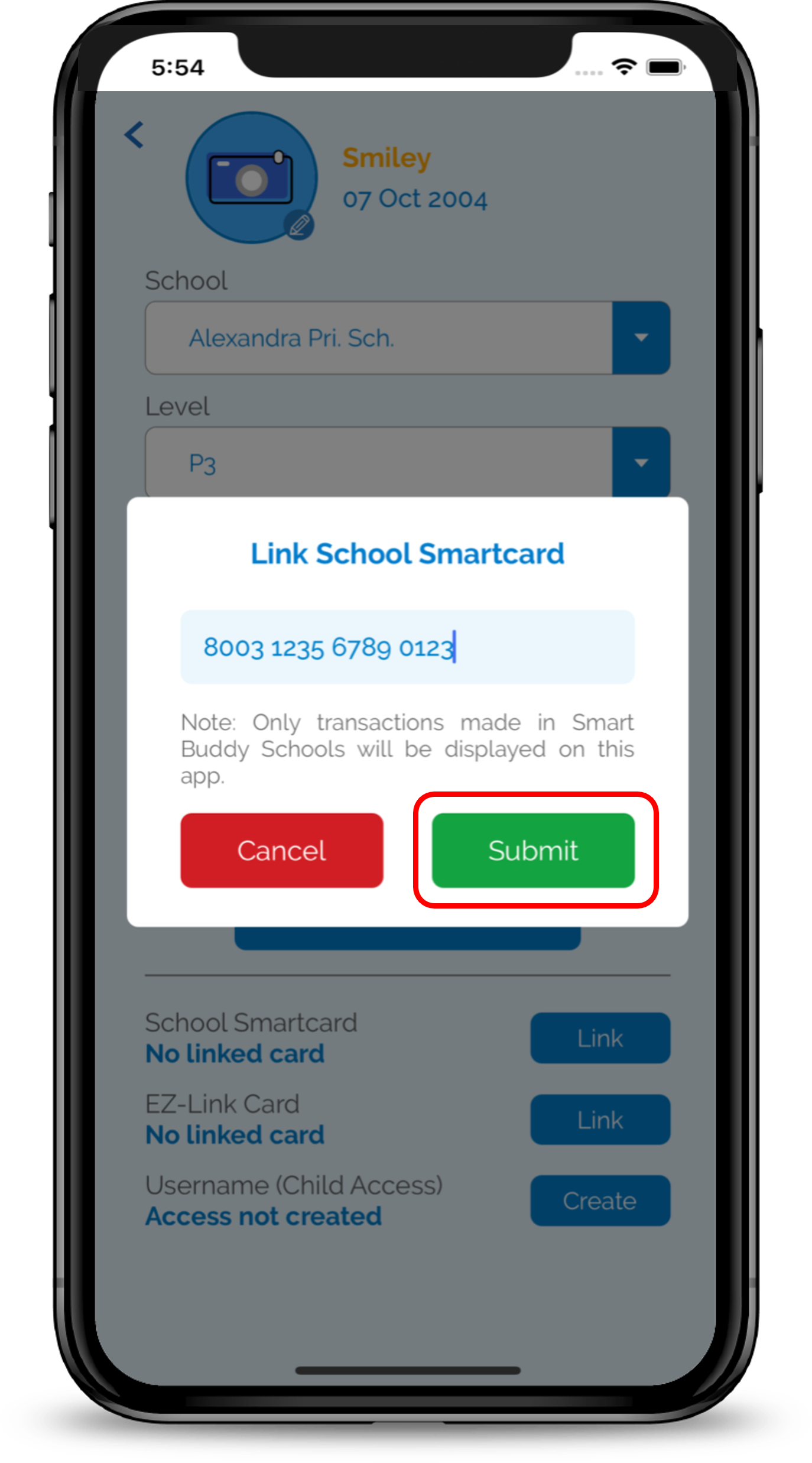
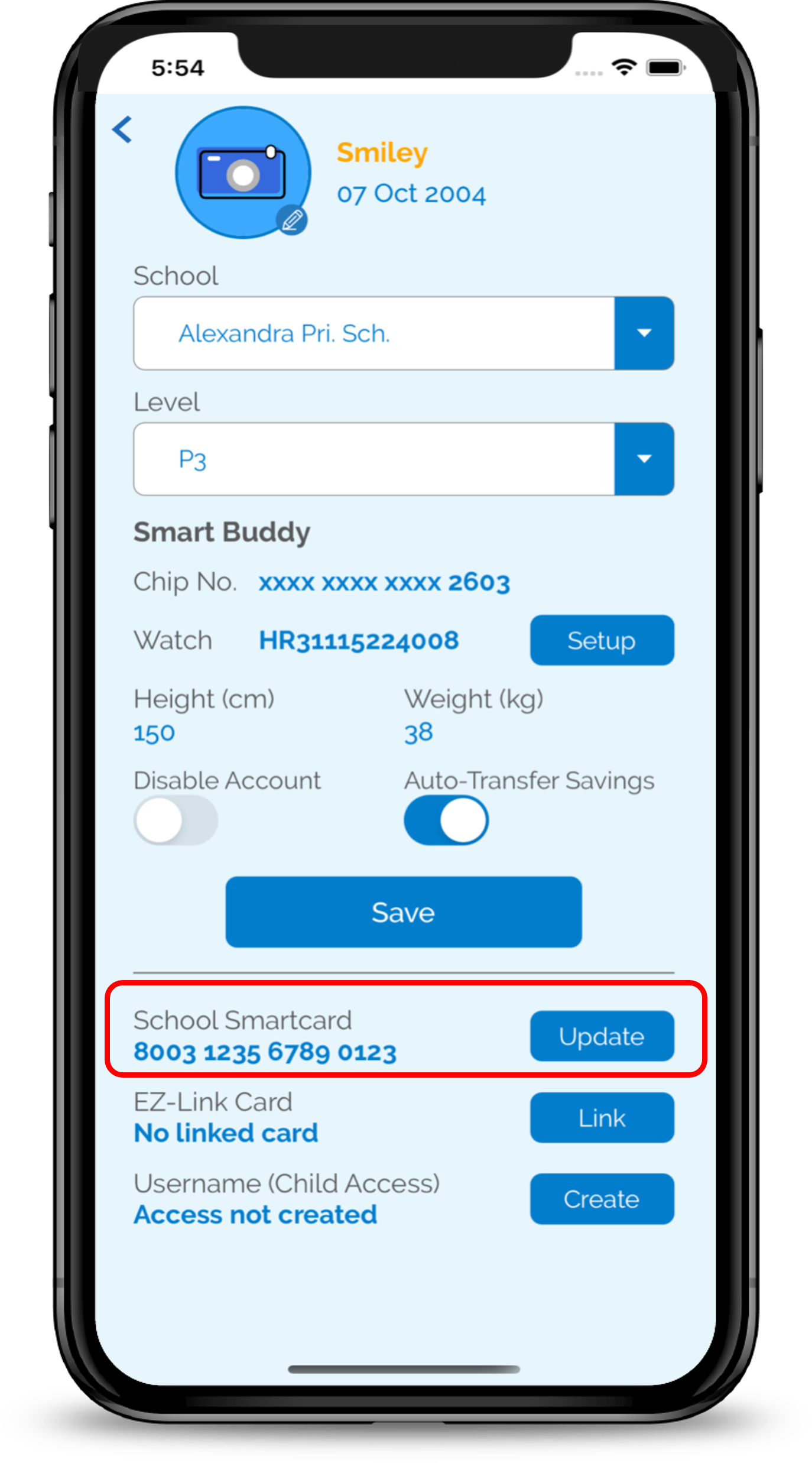
Link Smart Buddy Card, School Smartcard and EZ-Link card to child’s profile.
5
Step 5
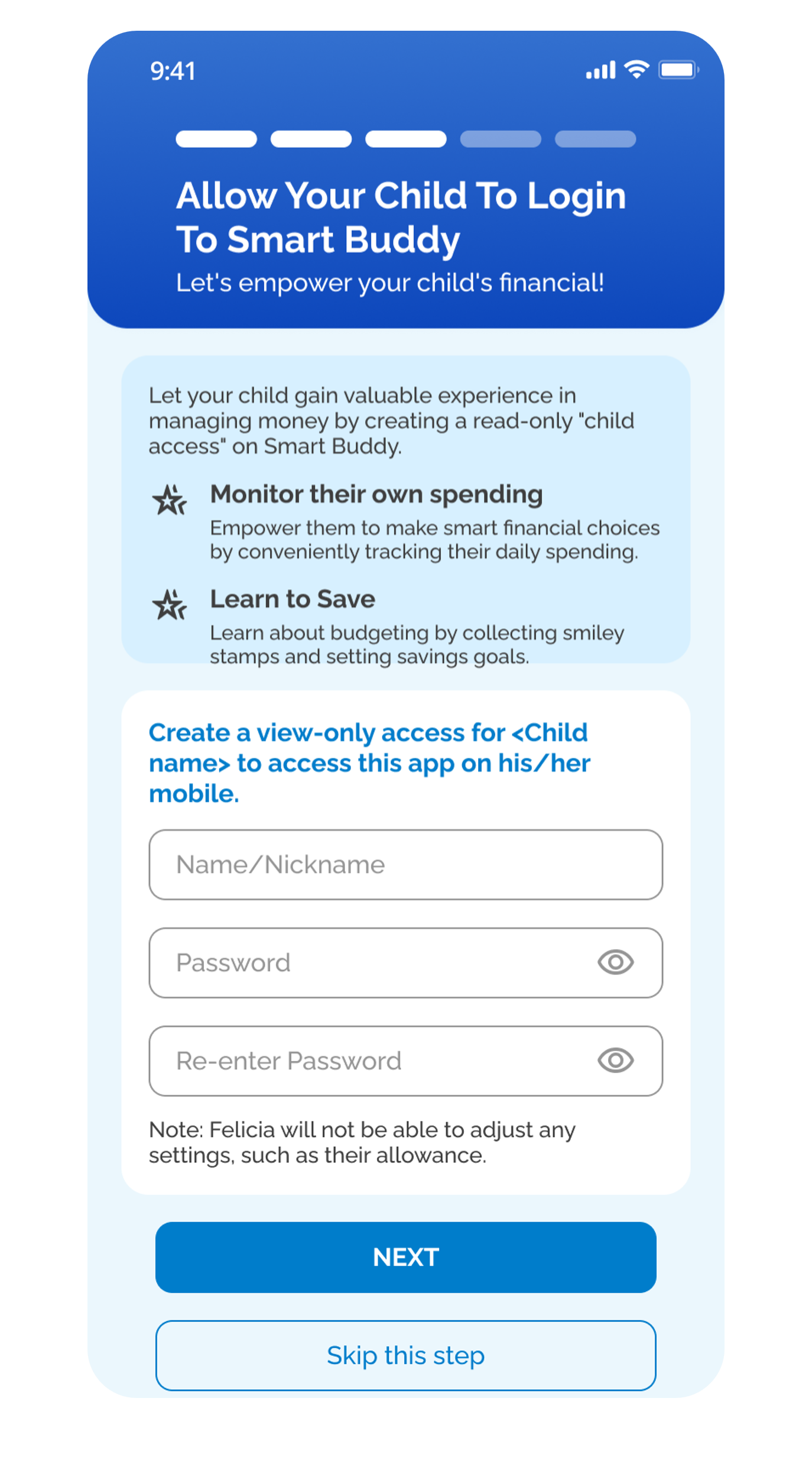
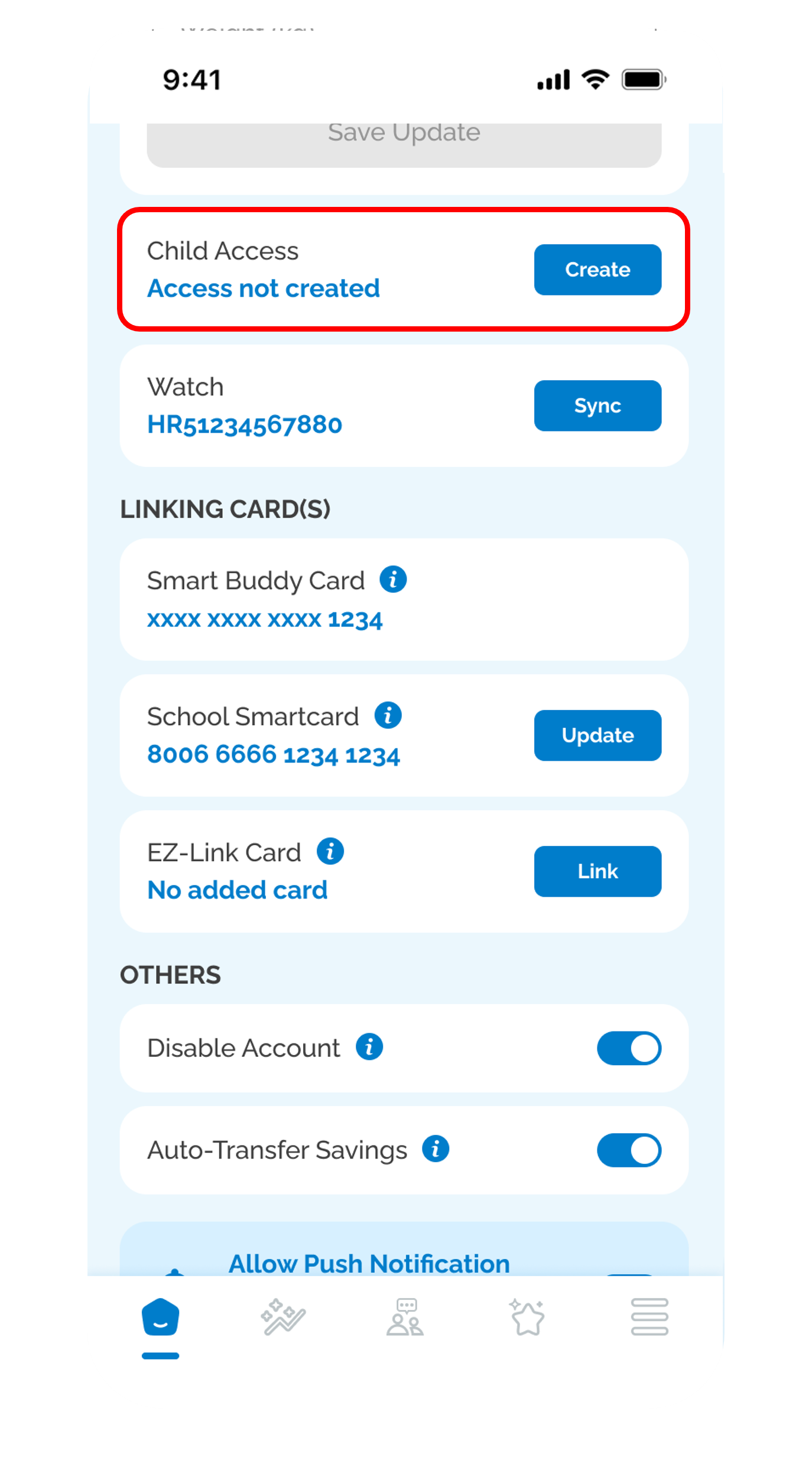
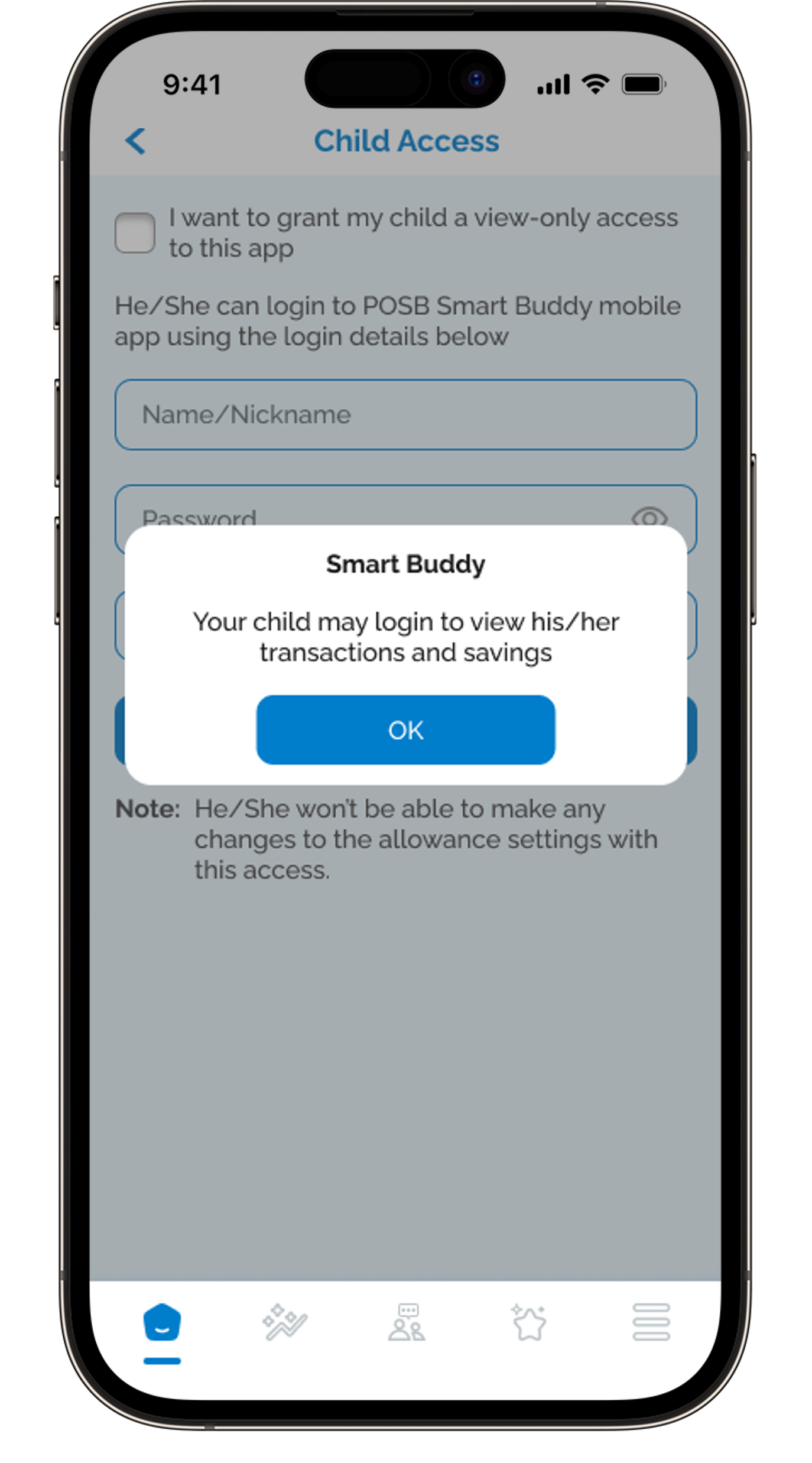
You may choose to set up a view only access on your child’s phone.
6
Step 6
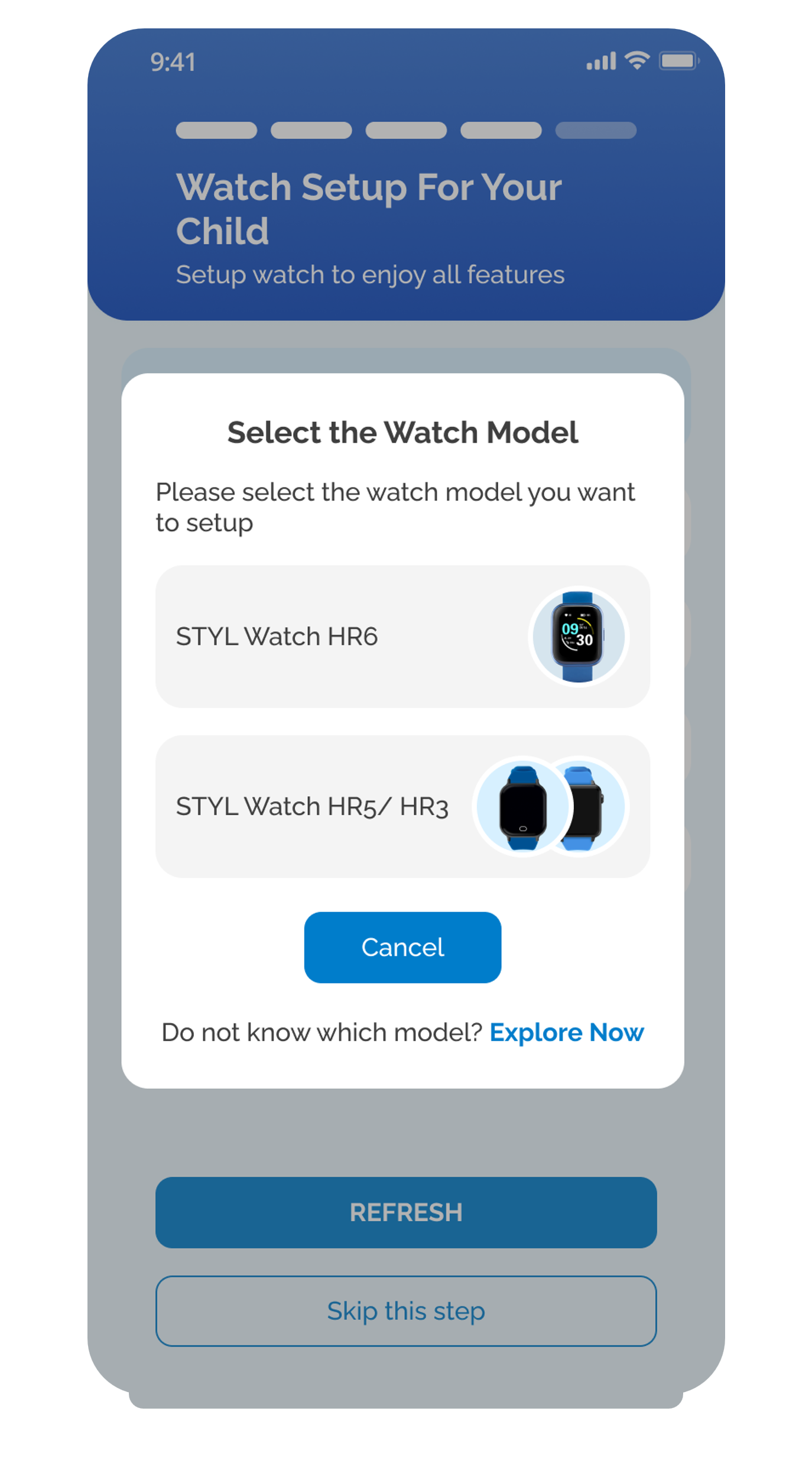
Set-up Smart Buddy Watch.
7
Step 7
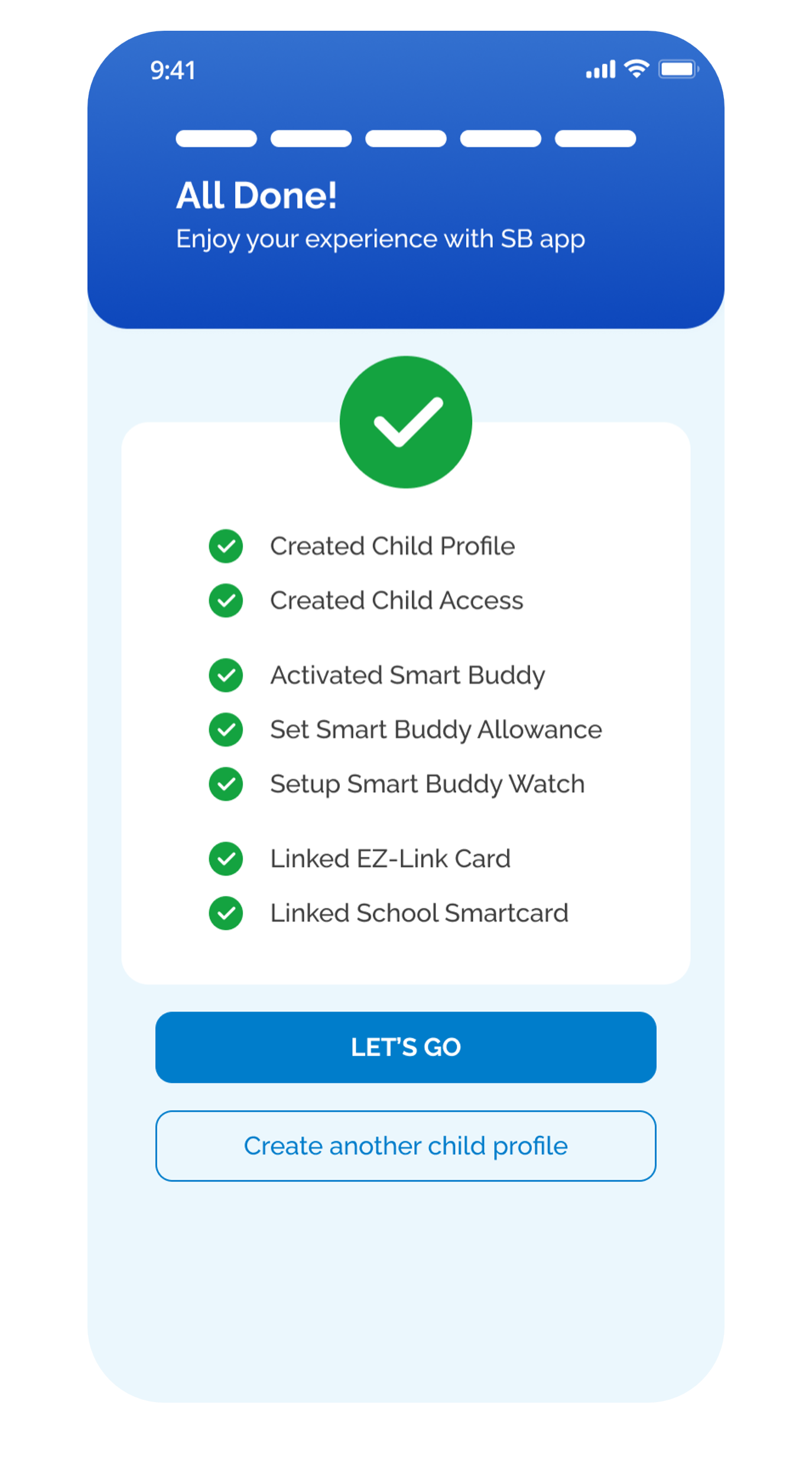
Congratulations, you successfully linked the Smart Buddy App.
Get the latest POSB Smart Buddy app now!

phone frame
slider
slider
slider
1
Step 1
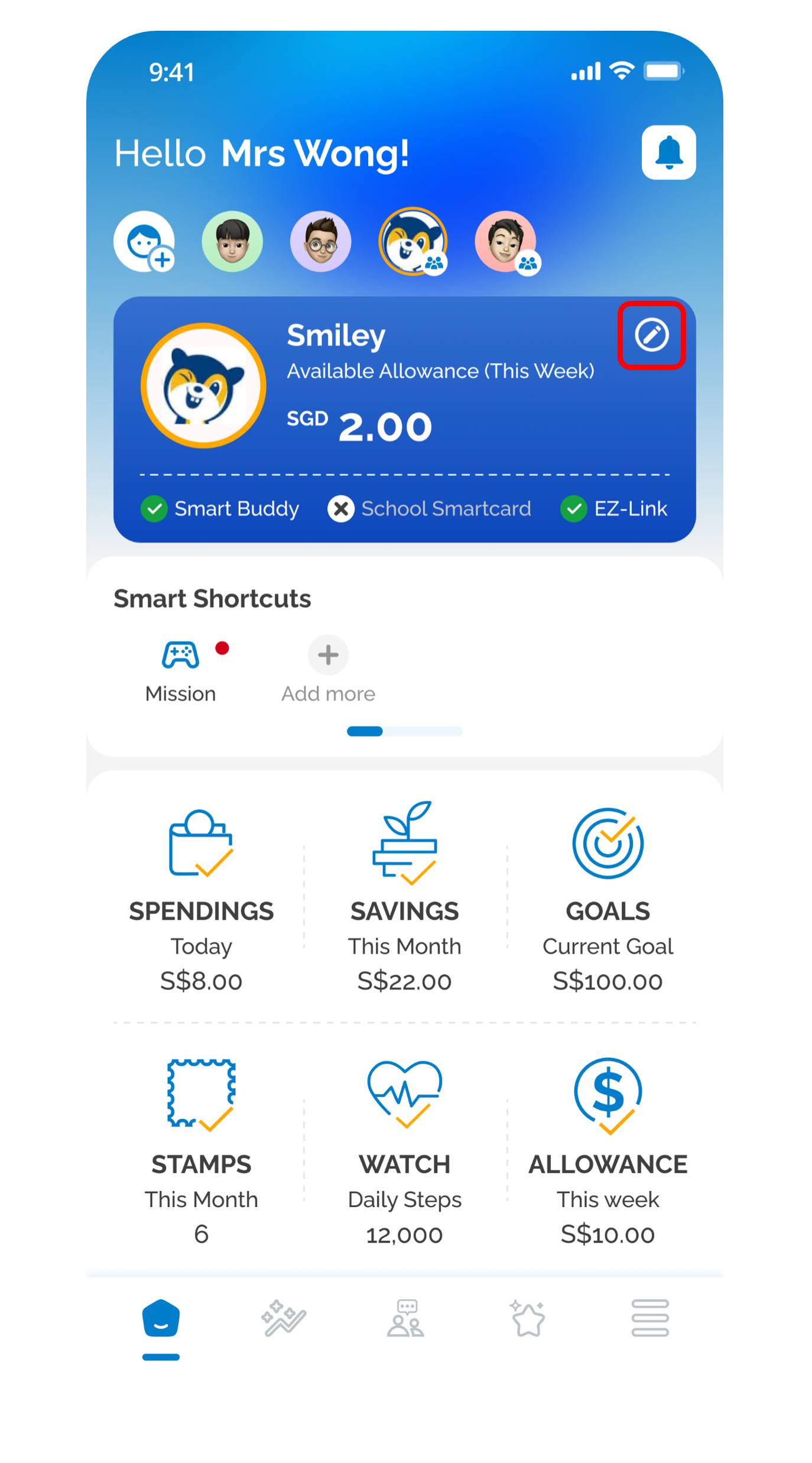
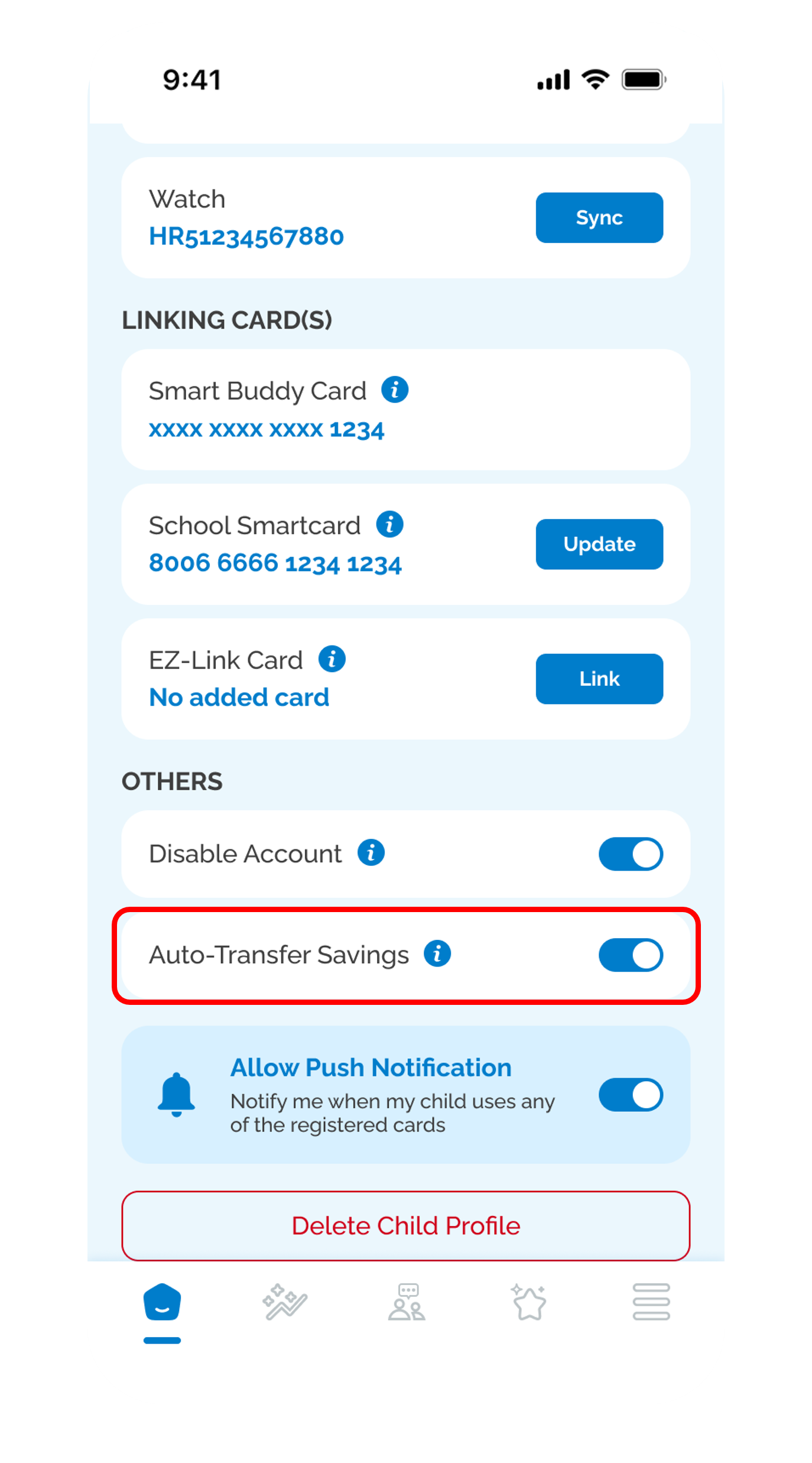
Tap on the Pencil icon in the main dashboard.
2
Step 2
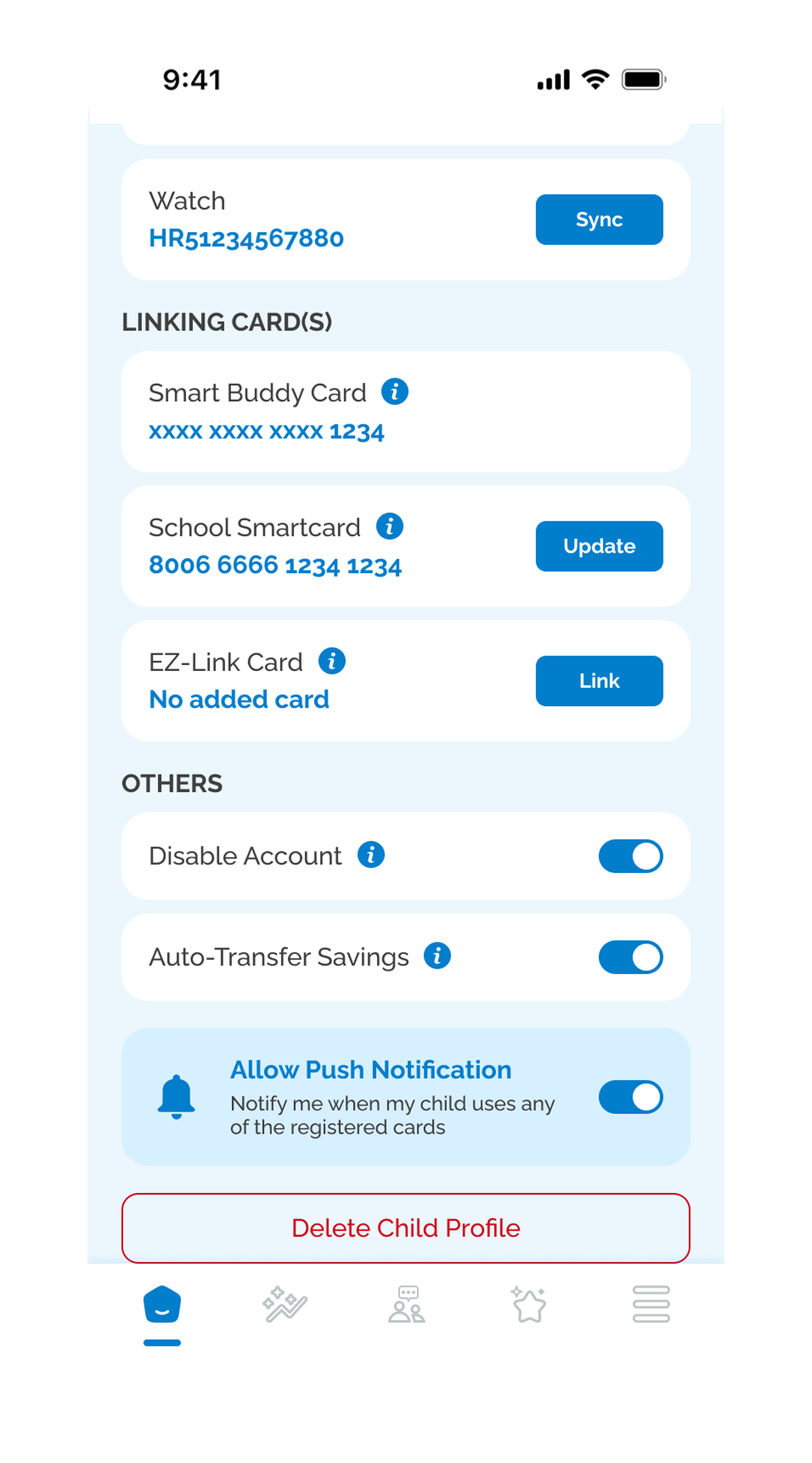
Turn on Auto-Transfer Savings to enable the function.
3
Step 3
Auto-Transfer Savings is now enabled and crediting to your child’s linked bank account will be performed by 10th of each month.
Get the latest POSB Smart Buddy app now!

phone frame
slider
slider
slider
slider
slider
1
Step 1
From the main dashboard, tap on the Pencil icon.
2
Step 2
Turn on Auto-Transfer Savings to enable the function.
3
Step 3
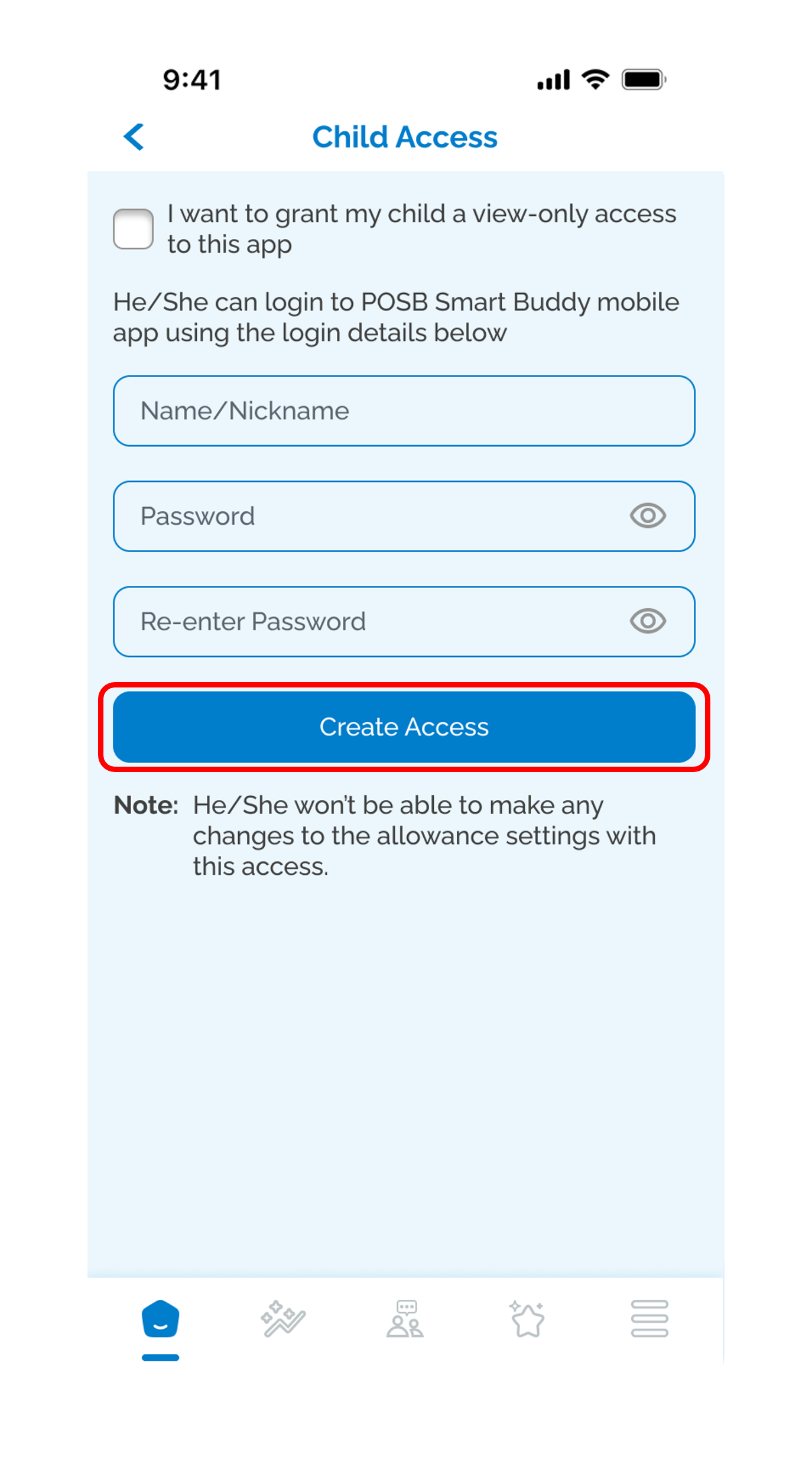
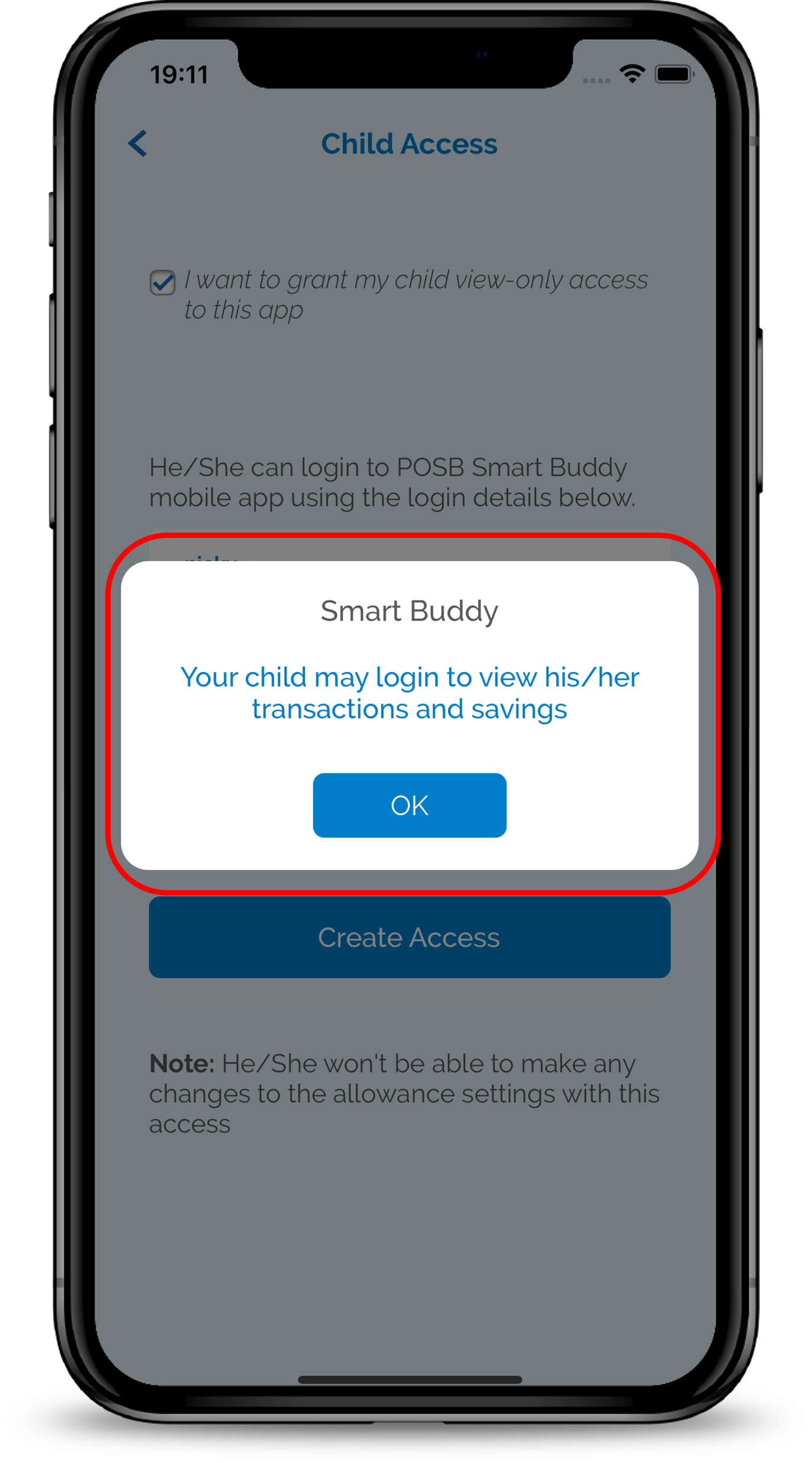
Create a separate name/nickname and password for your child.

Your child will not be allowed to make any changes to the allowance settings with this access.
4
Step 4
Your child now has ‘View Only’ access on the Smart Buddy App on their phone.
Get the latest POSB Smart Buddy app now!
phone frame
slider
slider
slider
slider
slider
slider
slider
1
Step 1
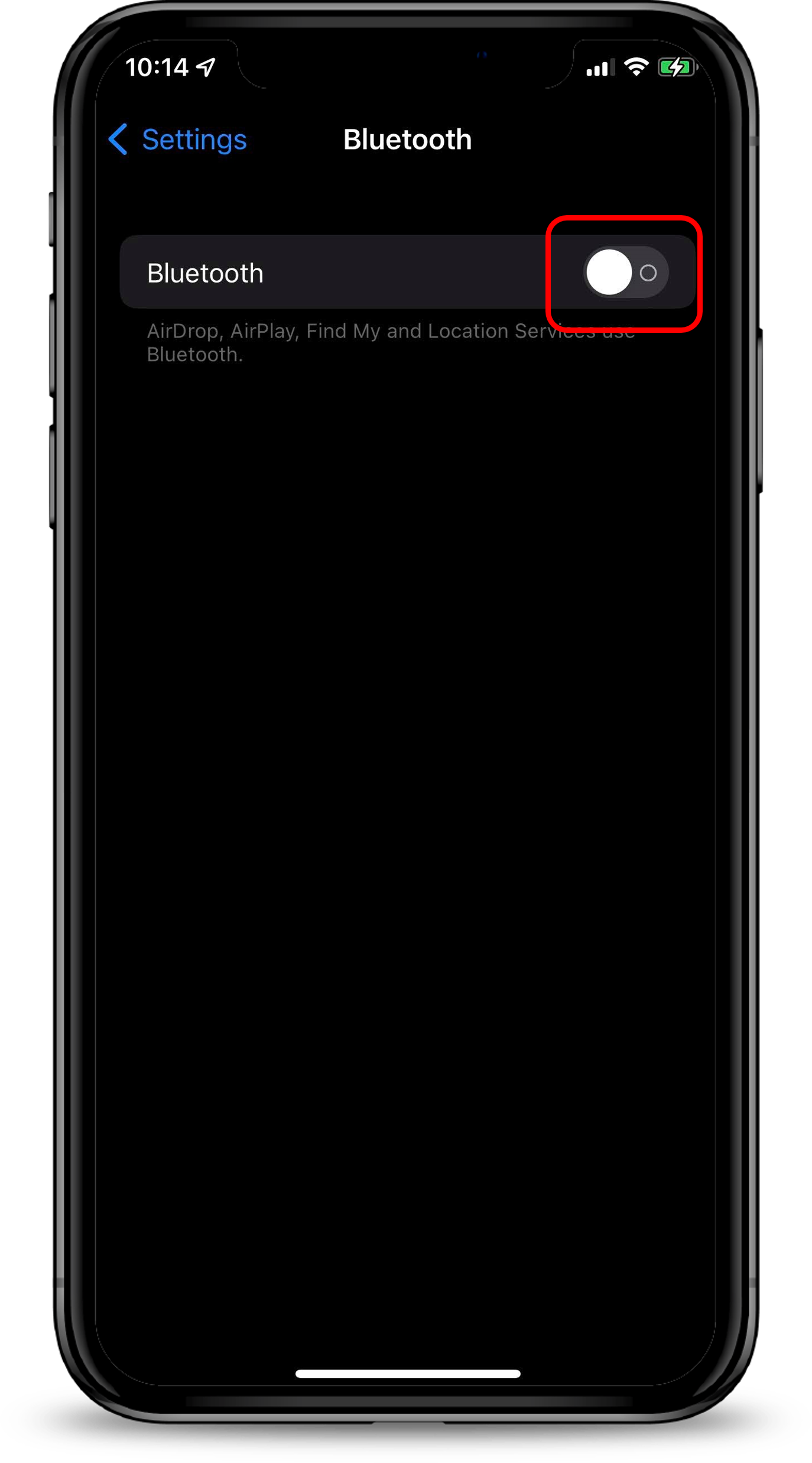
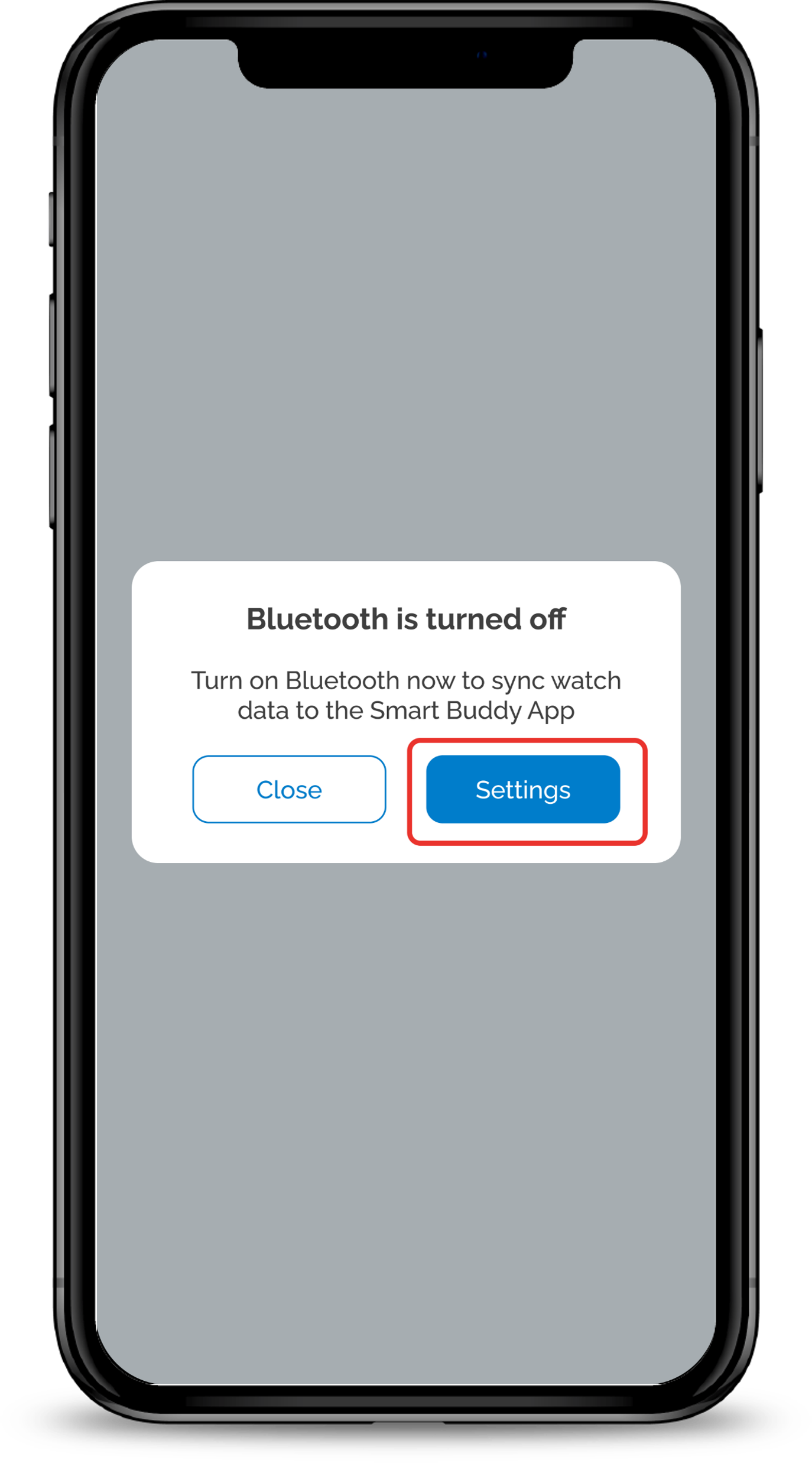
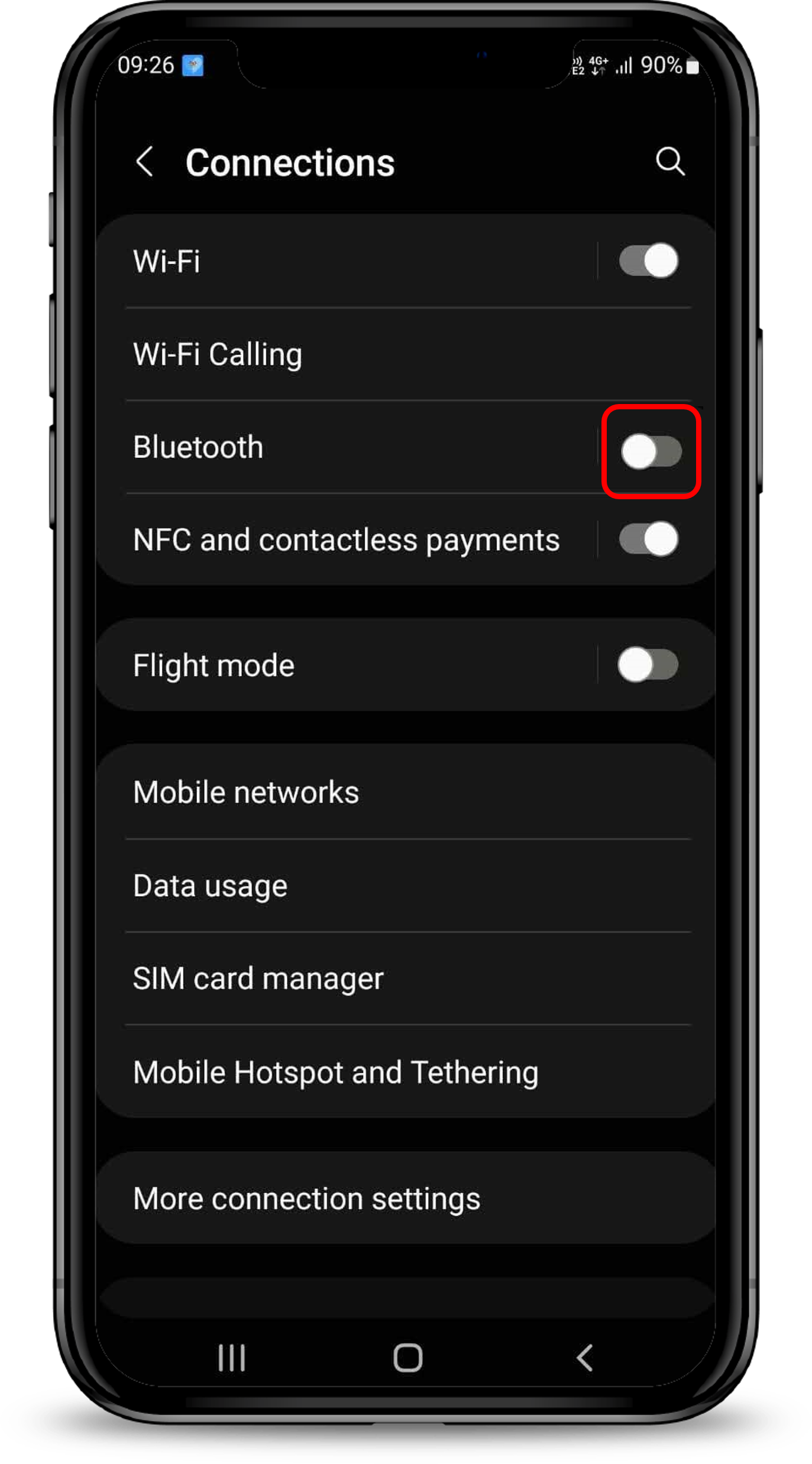
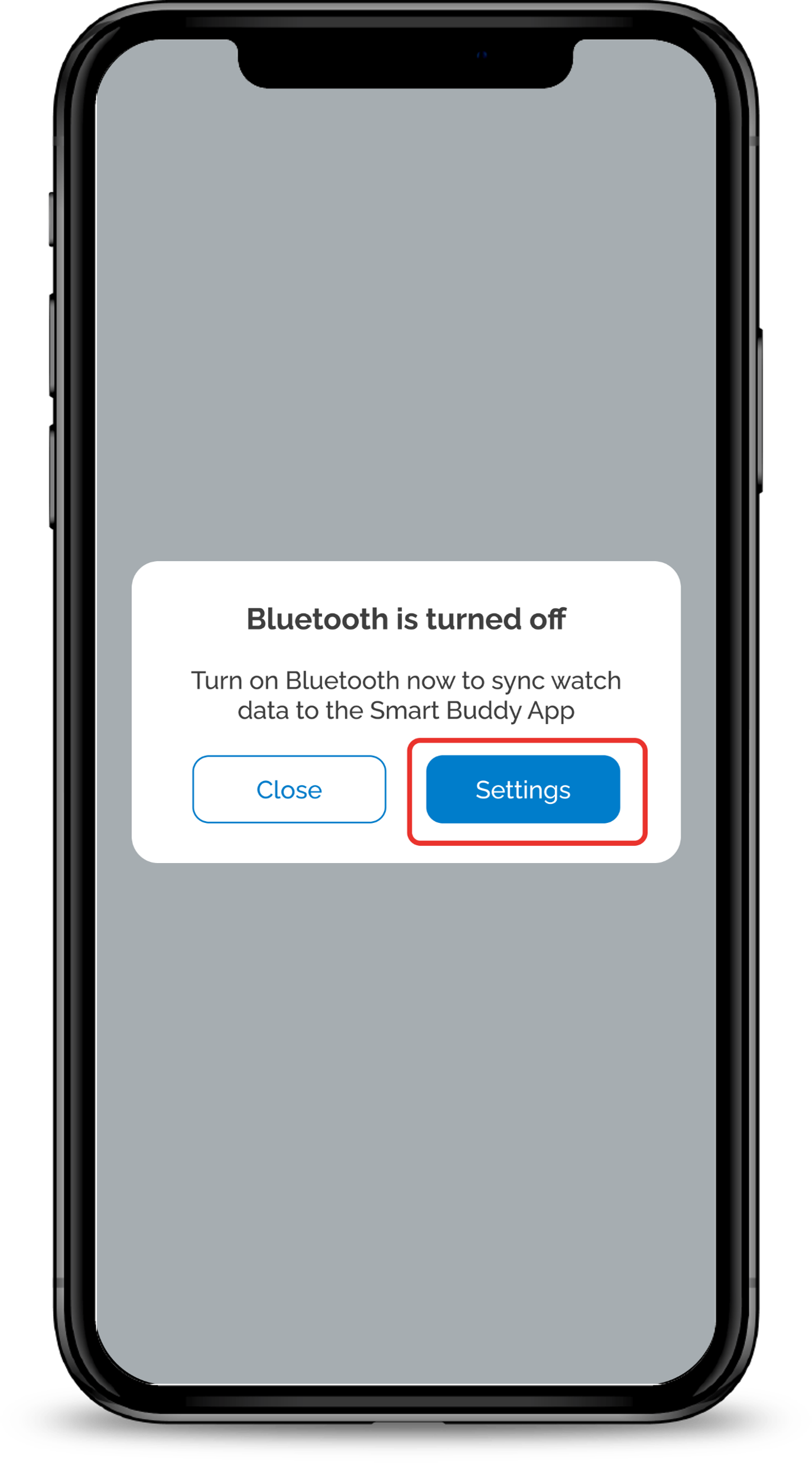
Turn off your Bluetooth under Settings on your phone.

Do note that feature needs to be completed via the Parent's phone only.
2
Step 2
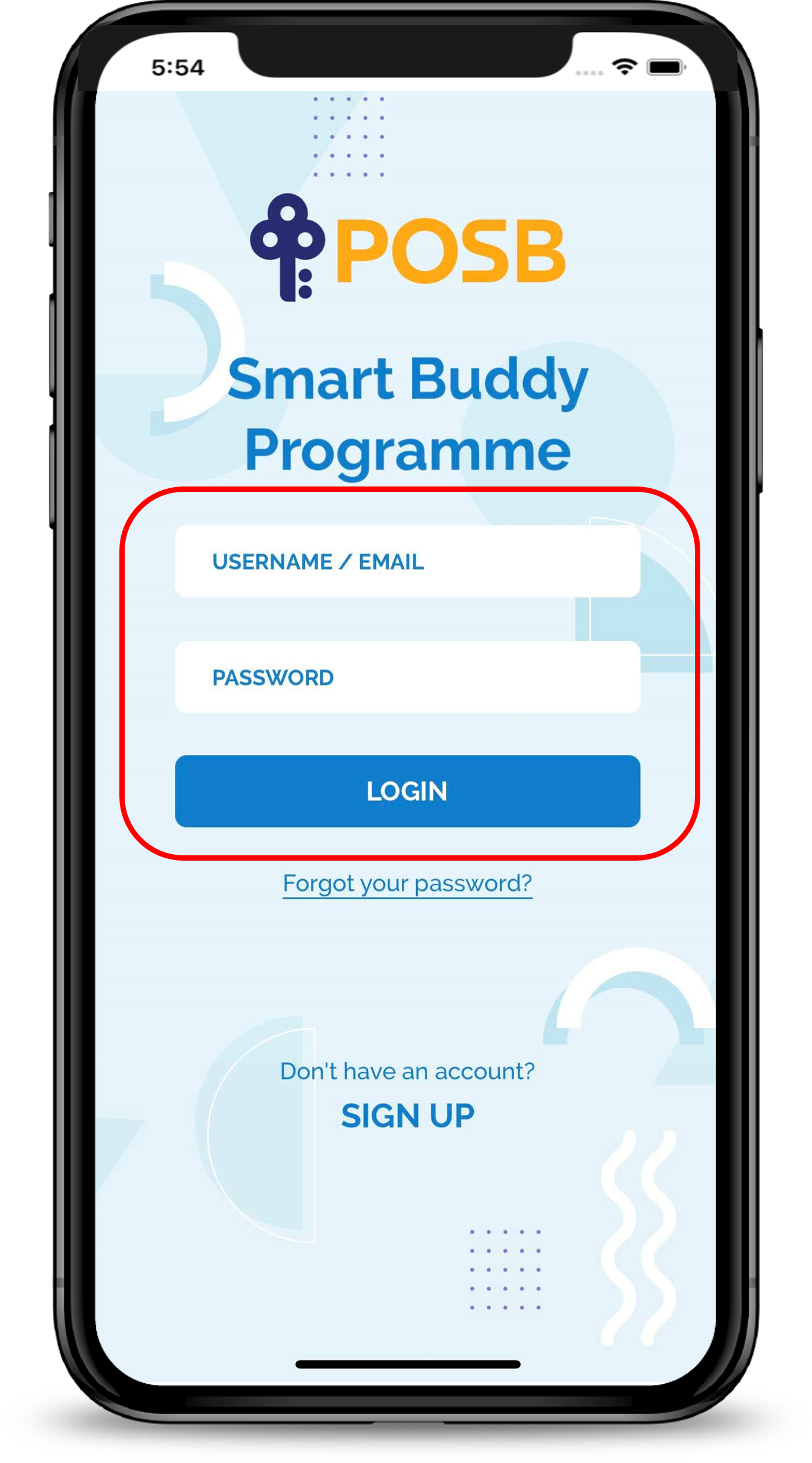
Open Smart Buddy App and Login with your username/email and password.
3
Step 3
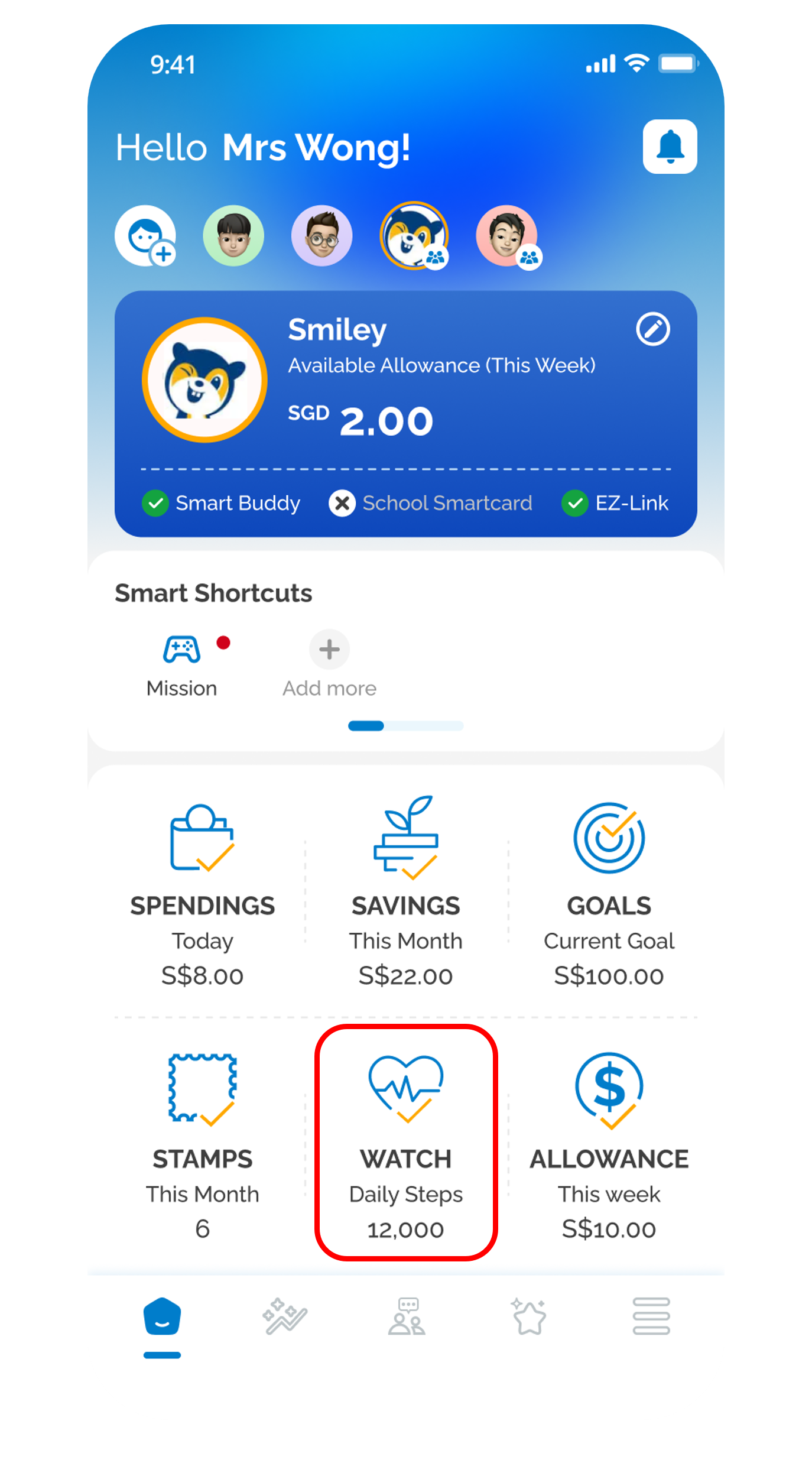
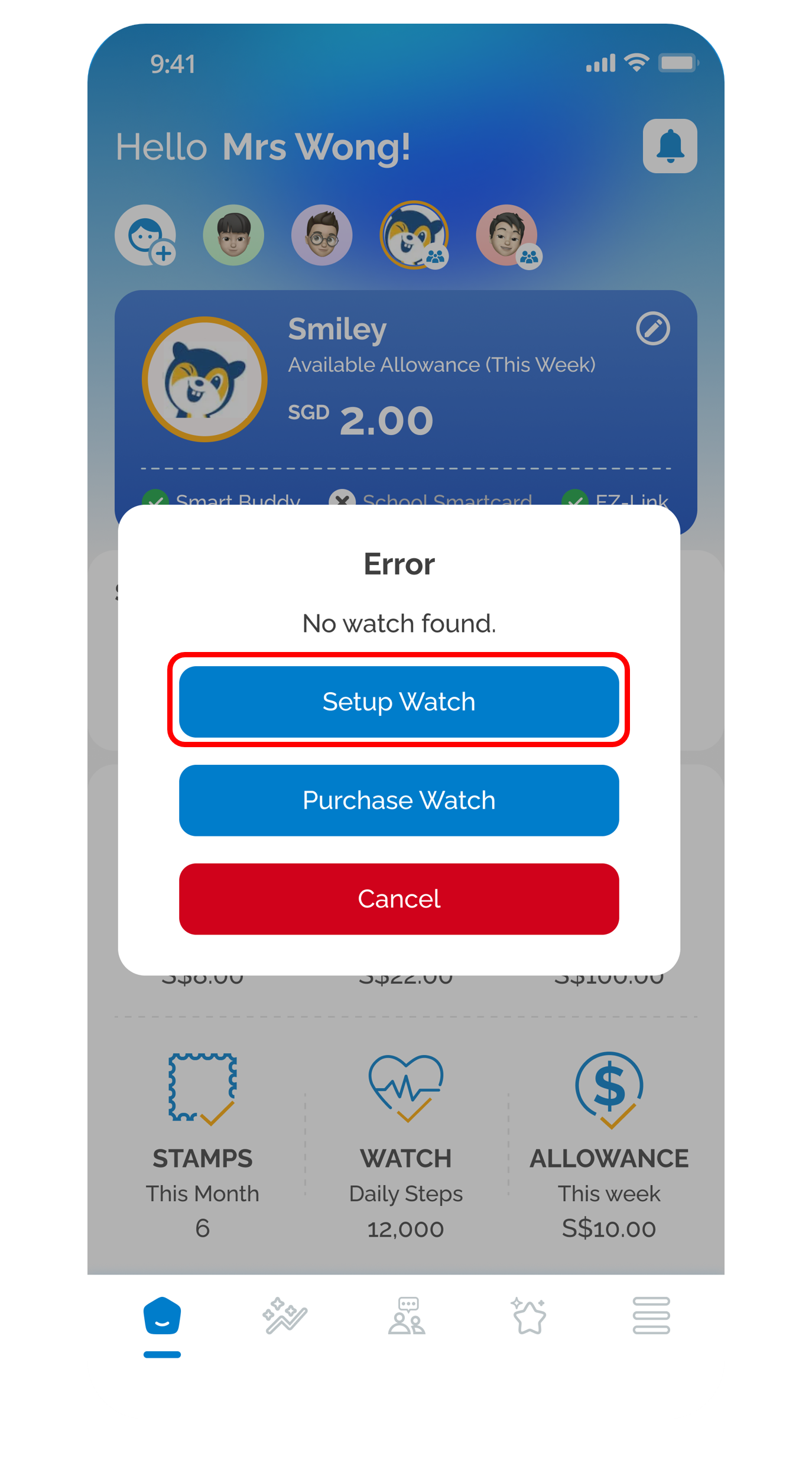
Tap the Watch icon.
4
Step 4
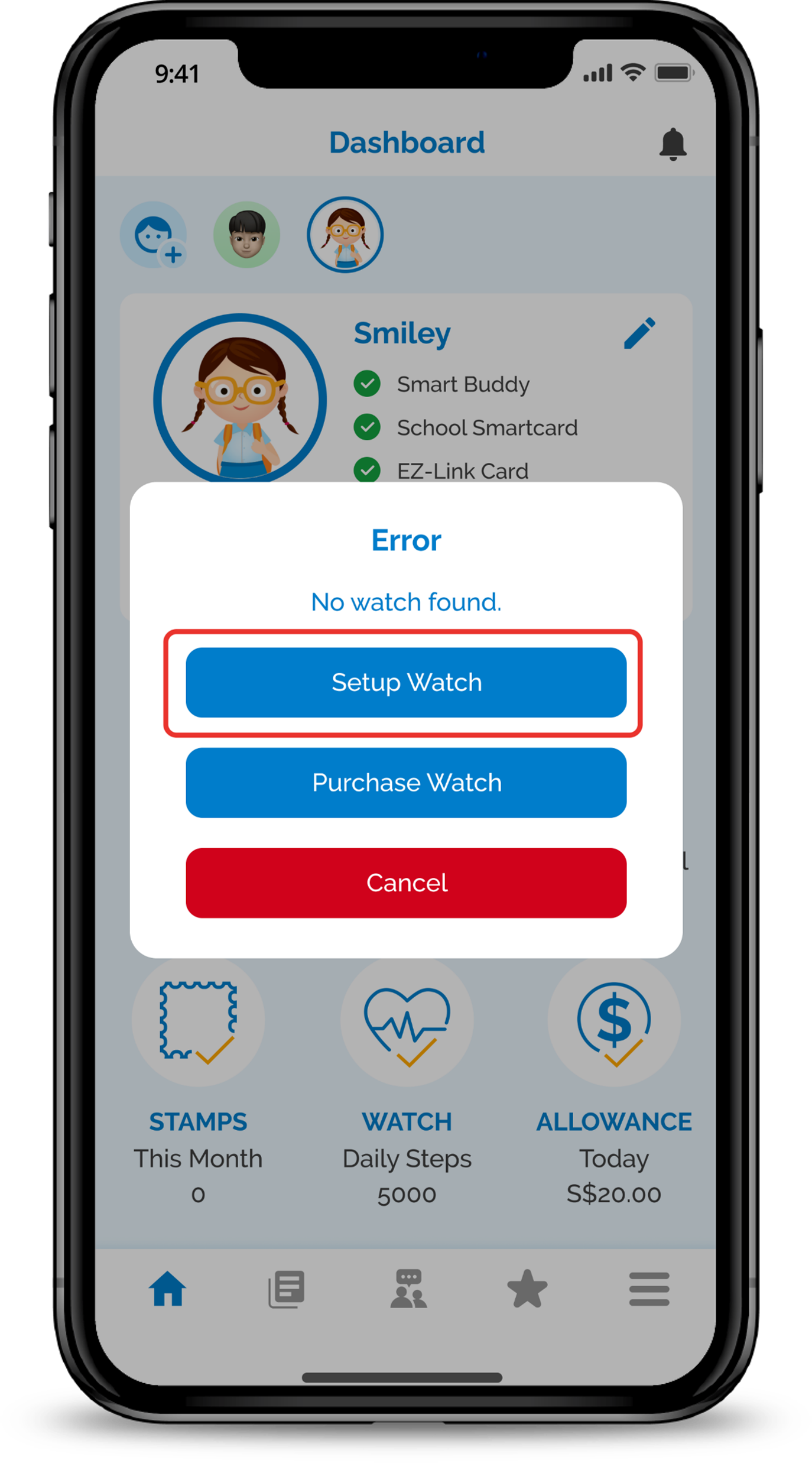
Tap Setup Watch.
5
Step 5
Turn on your phone's bluetooth and tap on Retry.
6
Step 6
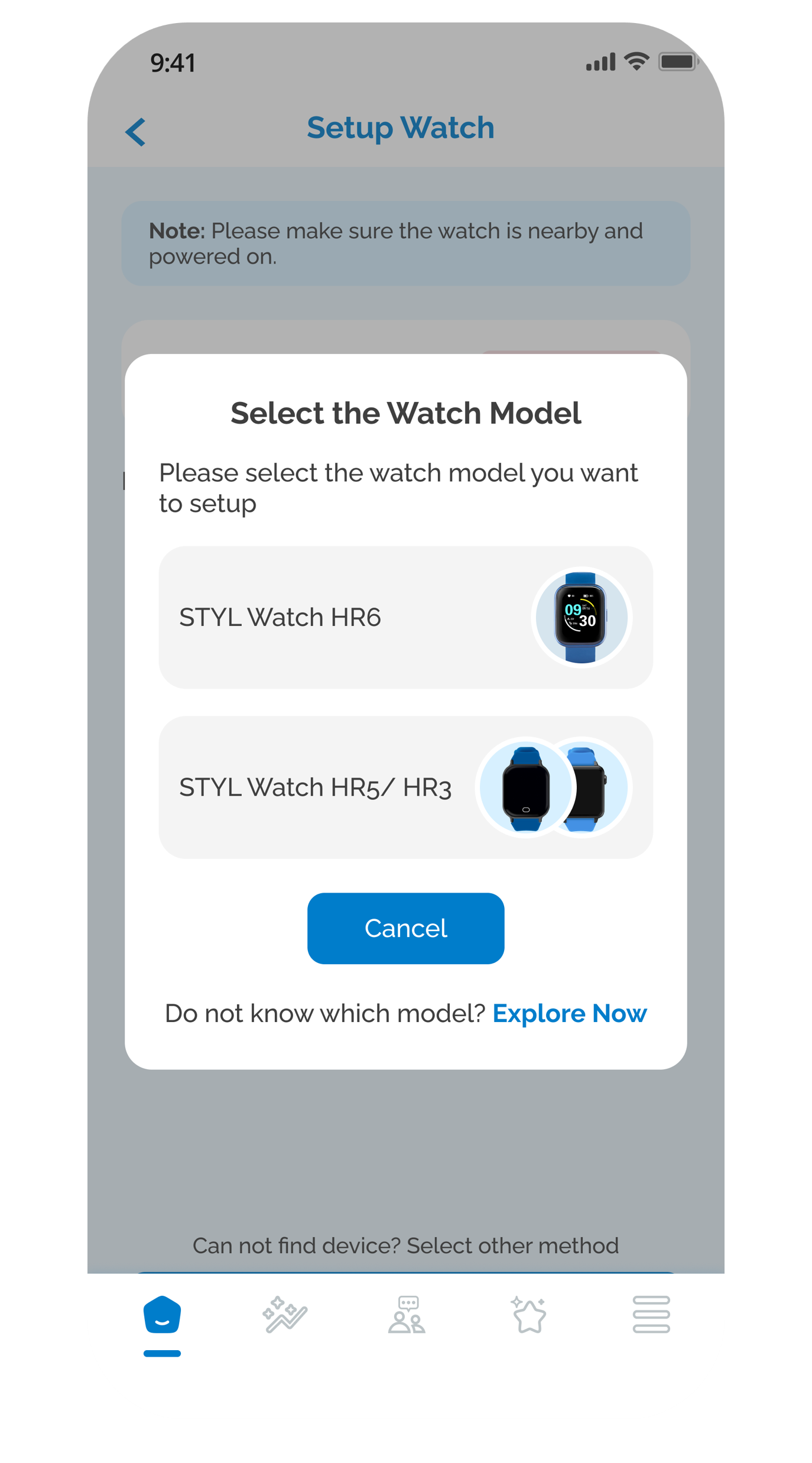
Select the correct Watch Model.
7
Step 7
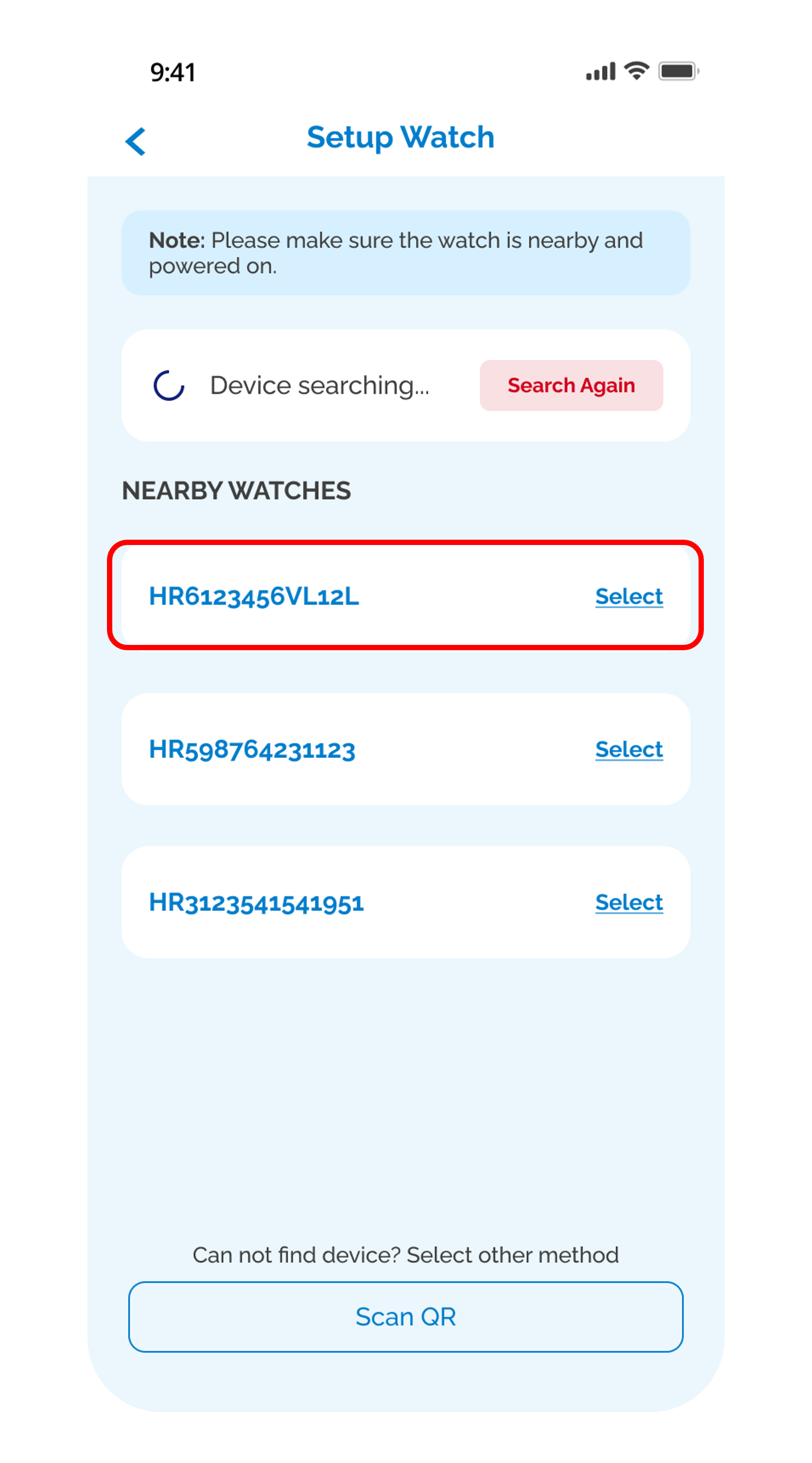
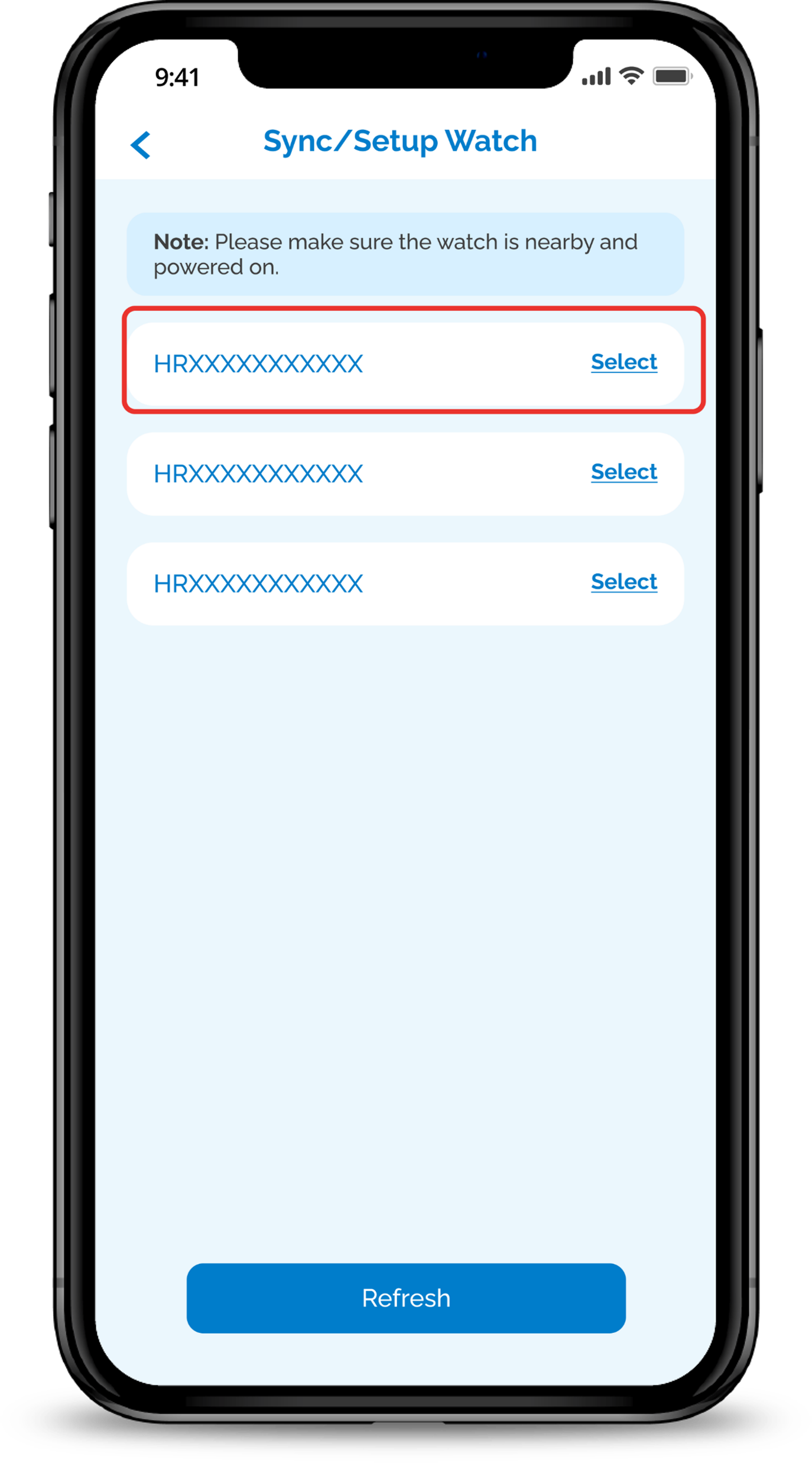
Select your watch’s serial number and complete the set up.

For subsequent syncing, click Sync under the Watch Section.

Get the latest POSB Smart Buddy app now!
phone frame
slider
slider
slider
slider
slider
slider
1
Step 1
Under your phone settings, ensure the watch is not paired to your phone first, then proceed to turn off Bluetooth under settings.

Do note that feature needs to be completed via the Parent's phone only.
2
Step 2
Open Smart Buddy App and Login with your username/email and password.
3
Step 3
Tap the Watch icon.
4
Step 4
Tap Setup Watch.
5
Step 5
Turn on Bluetooth on your device and if you are prompted to pair the watch, click Cancel or Done then click Retry.
6
Step 6
Select your watch's serial number to complete the setup.

For subsequent syncing, click Sync under the Watch Section.
Get the latest POSB Smart Buddy app now!
phone frame
slider
slider
slider
slider
slider
slider
1
Step 1
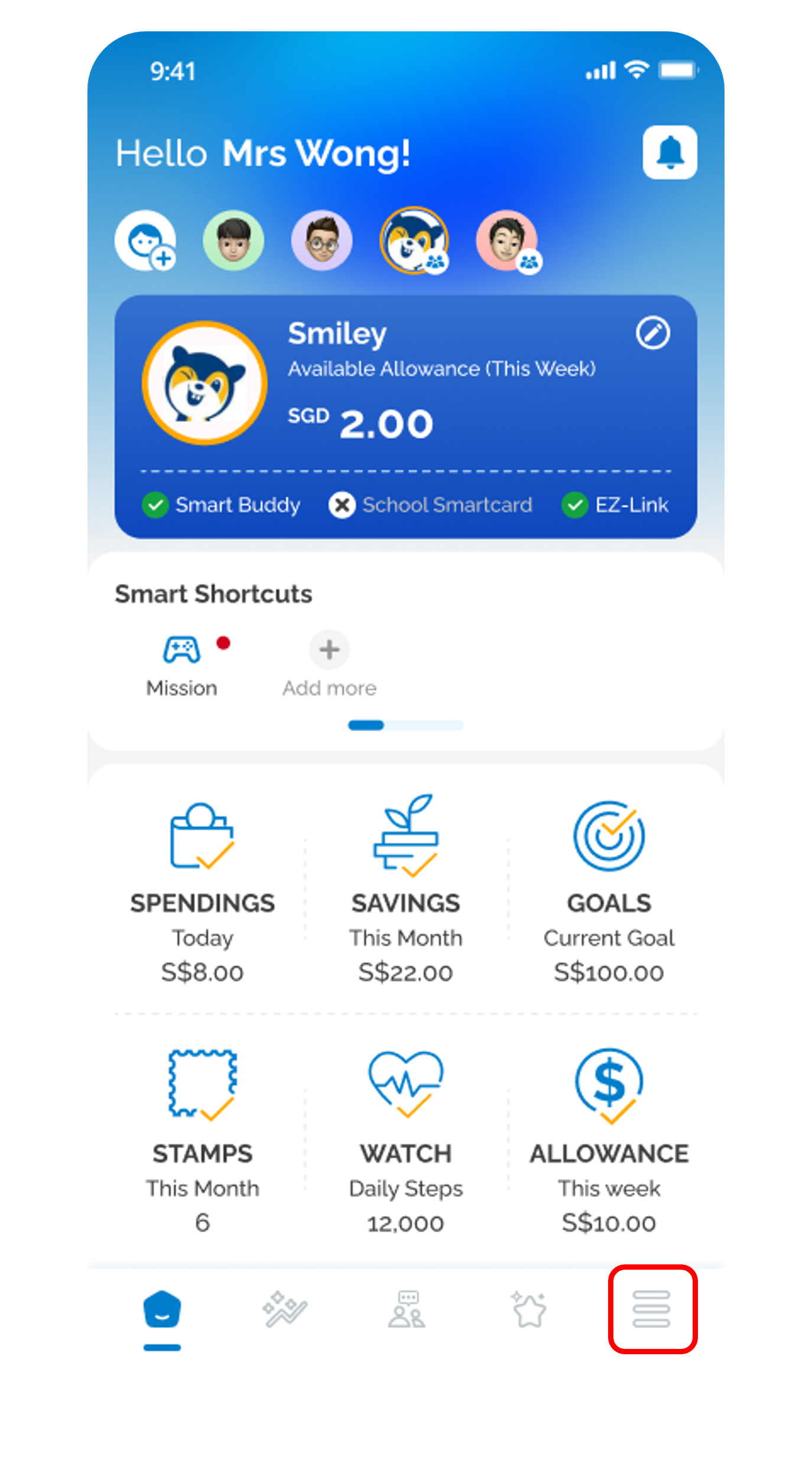
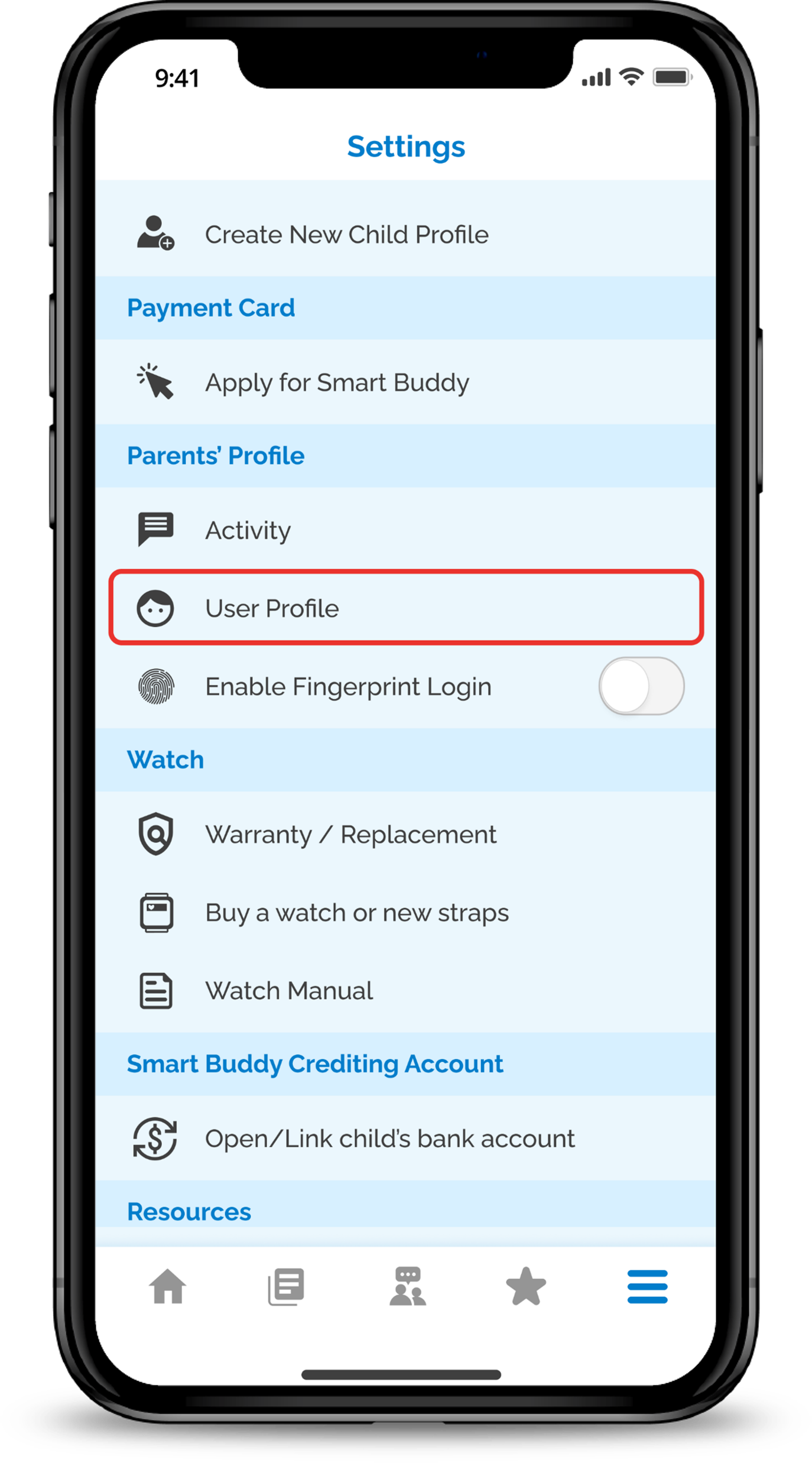
Tap on the Hamburger icon in the main dashboard.
2
Step 2
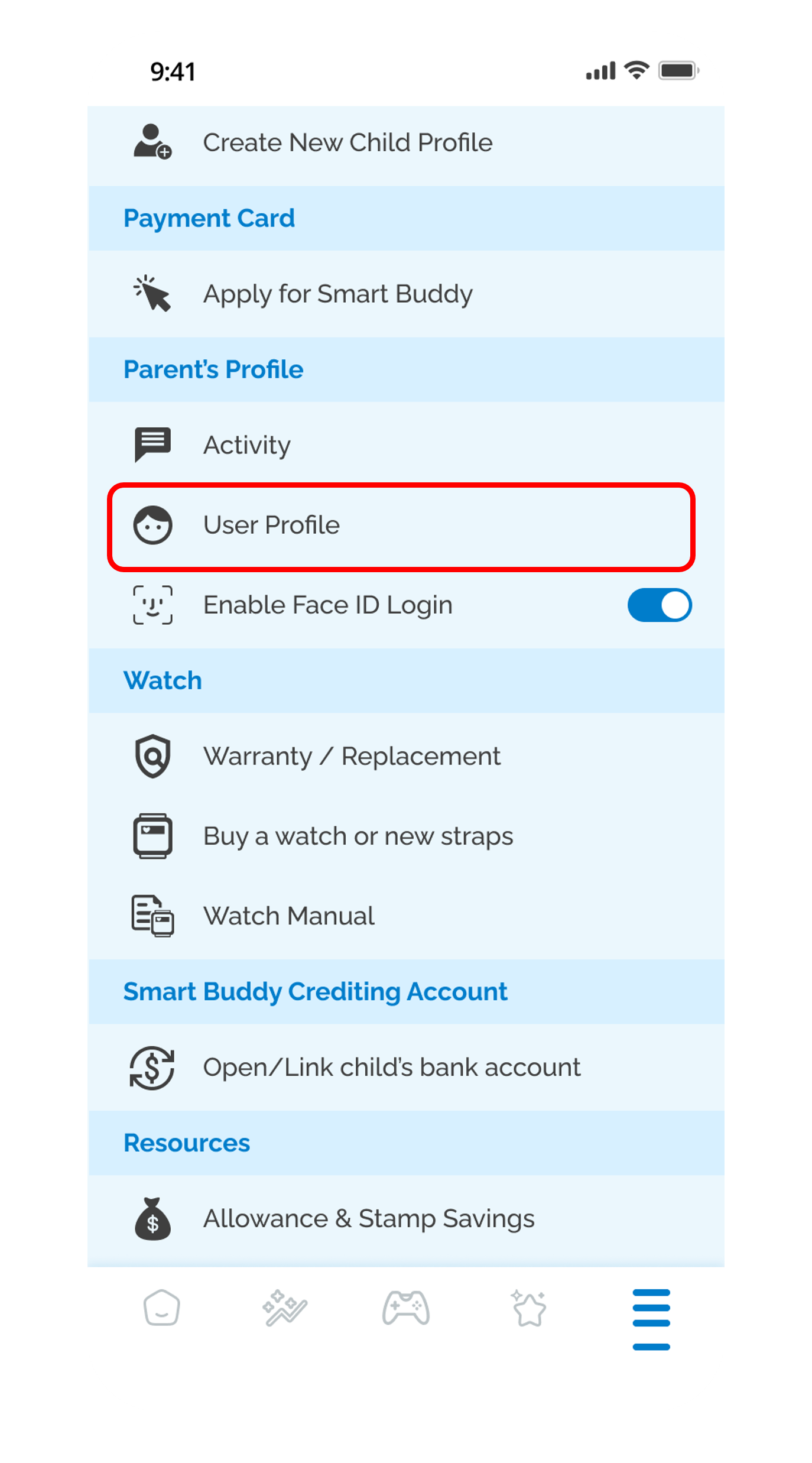
Tap User Profile.
3
Step 3
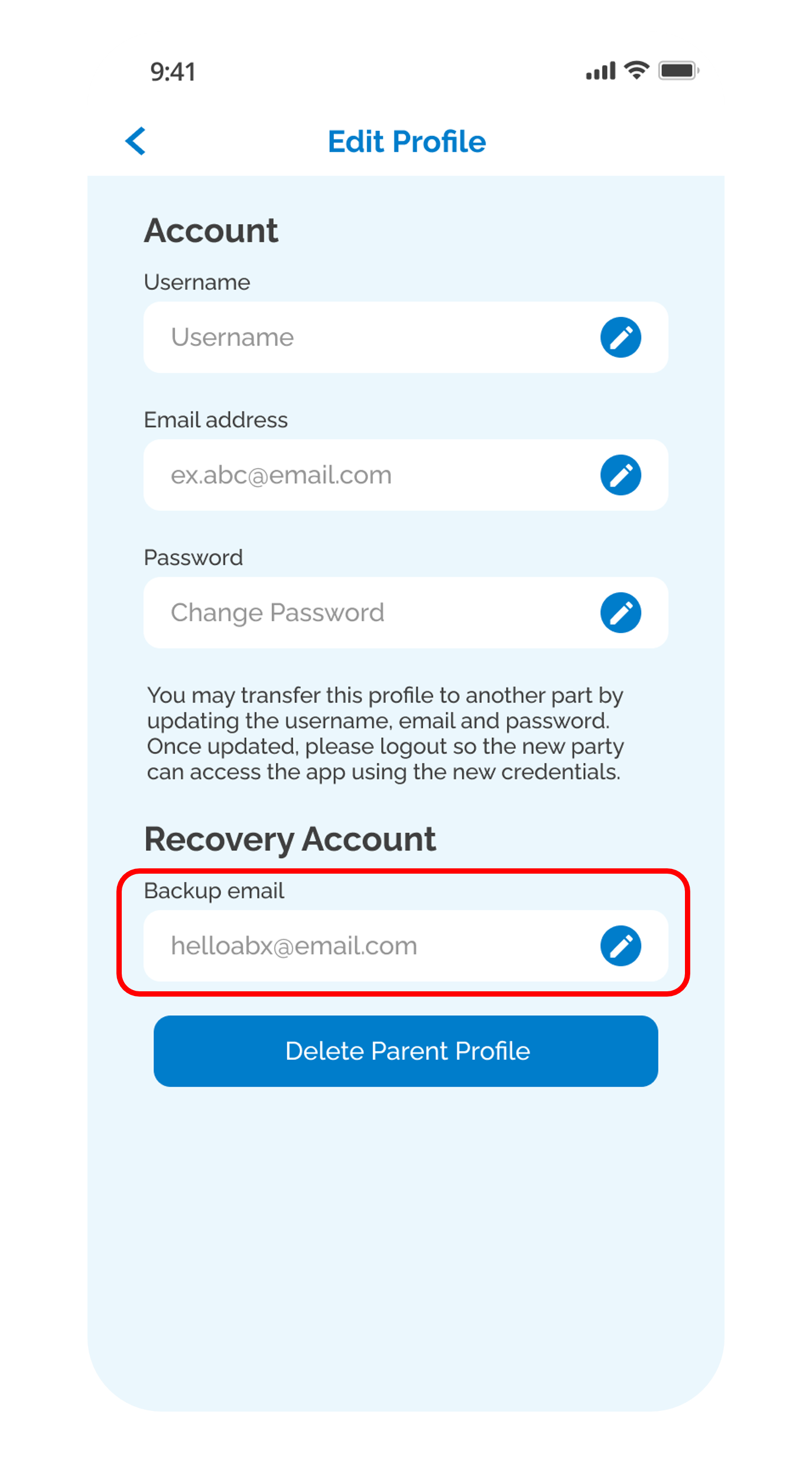
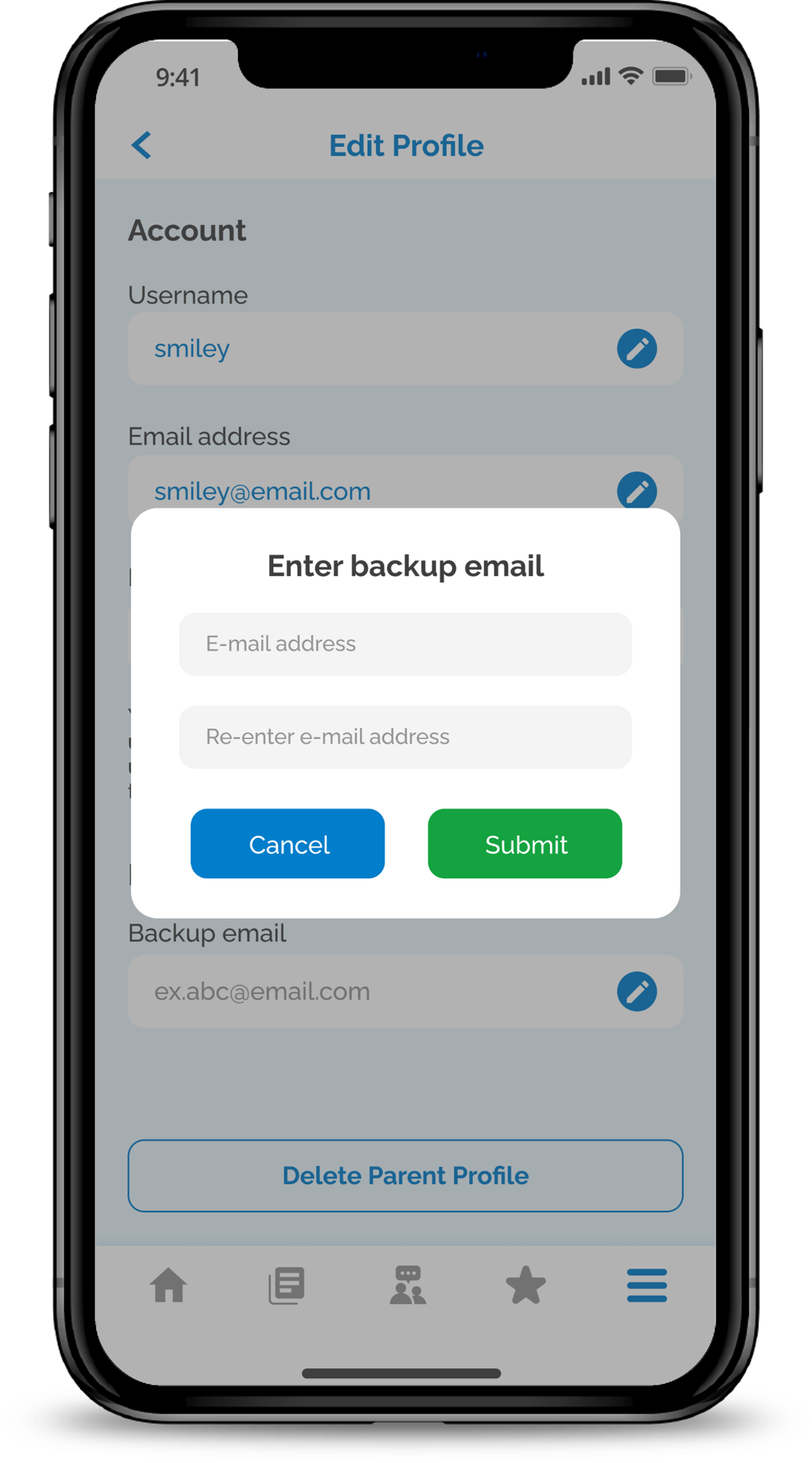
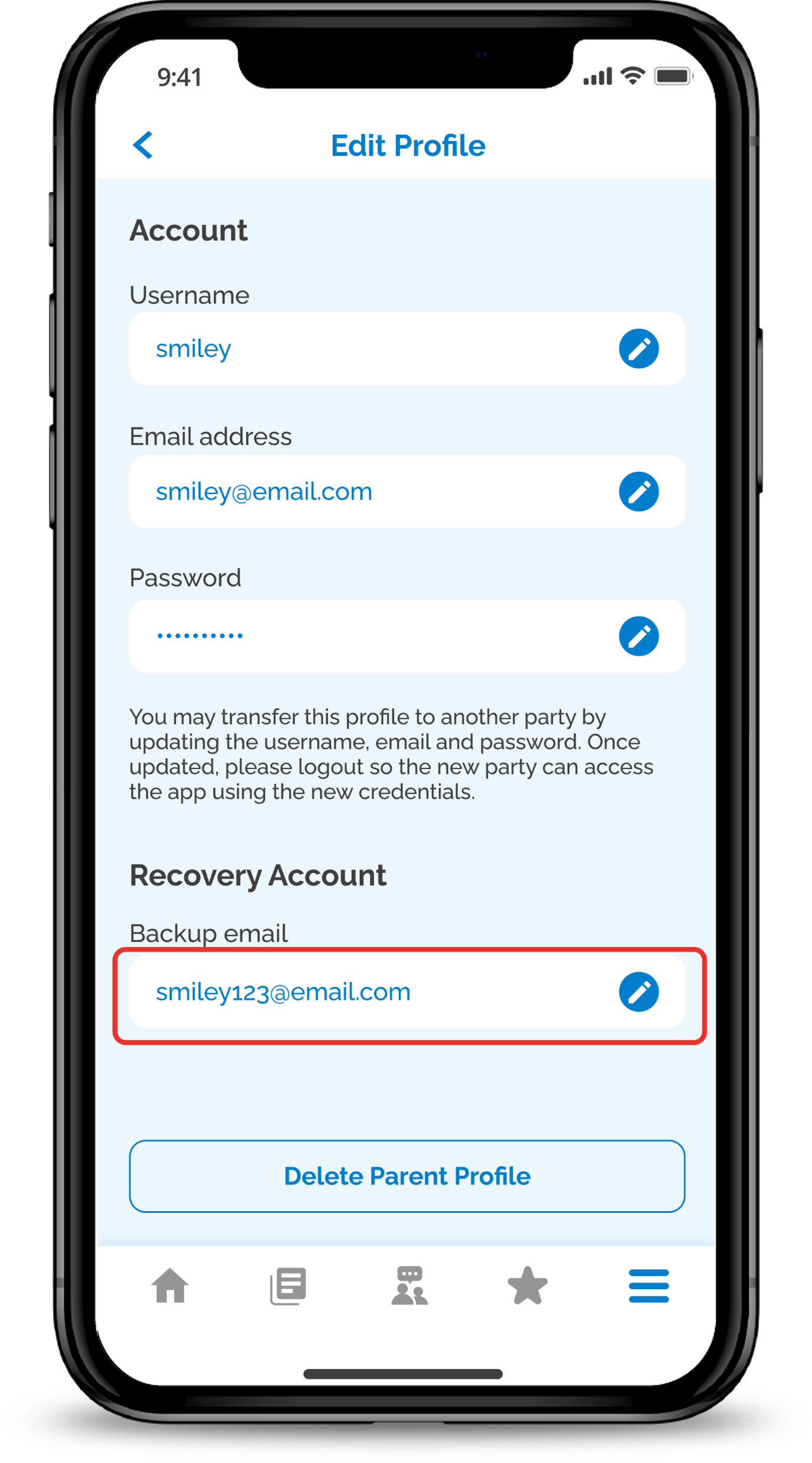
At Recovery Account, tap on Back up email.
4
Step 4
Enter your back up Email Address and input your current password.

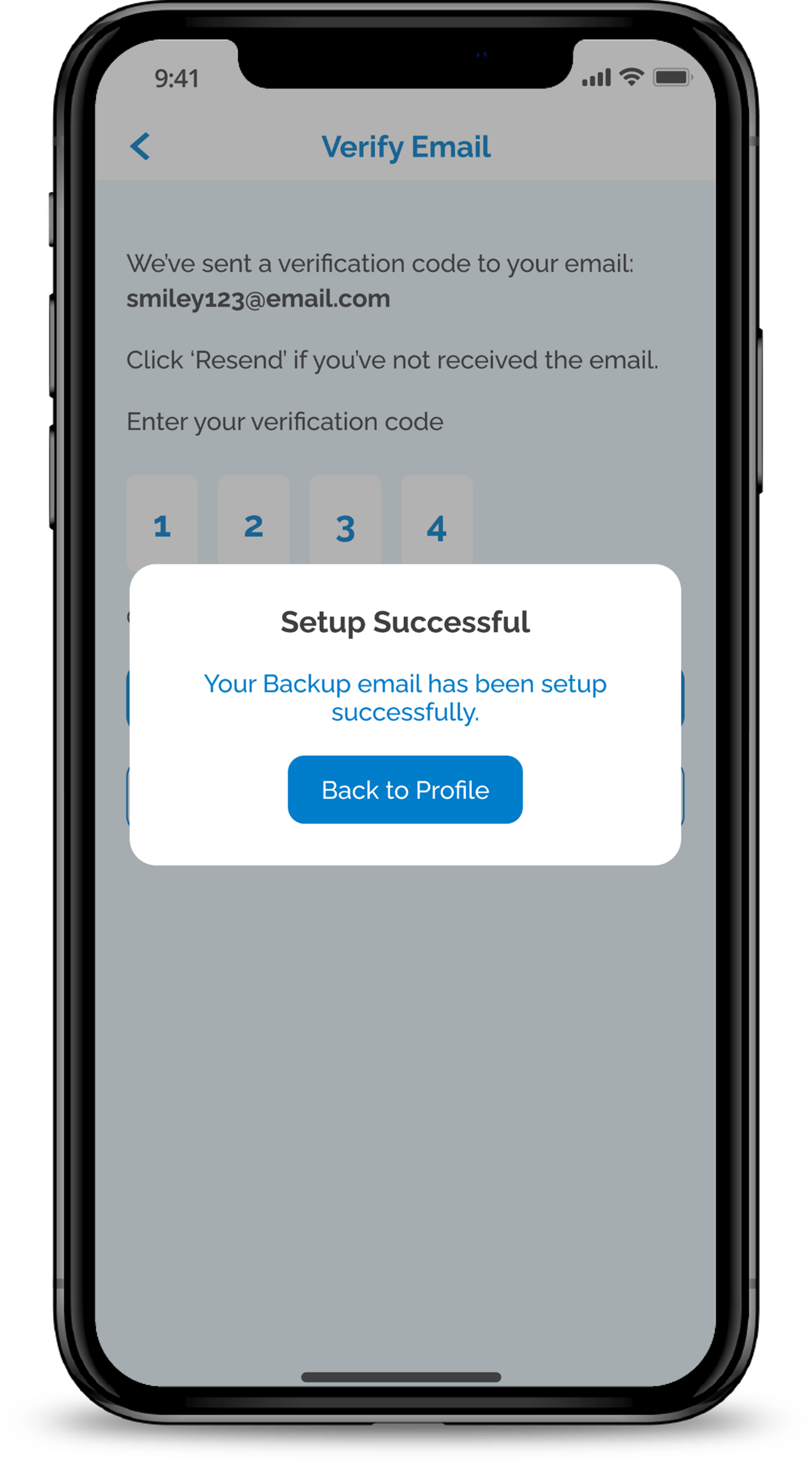
Type in the verification code received in your backup email.
5
Step 5
Tap on Back to Profile to ensure setup of backup email is completed.
6
Step 6
Ensure backup email is showing in the field.
Get the latest POSB Smart Buddy app now!
phone frame
slider
slider
slider
1
Step 1
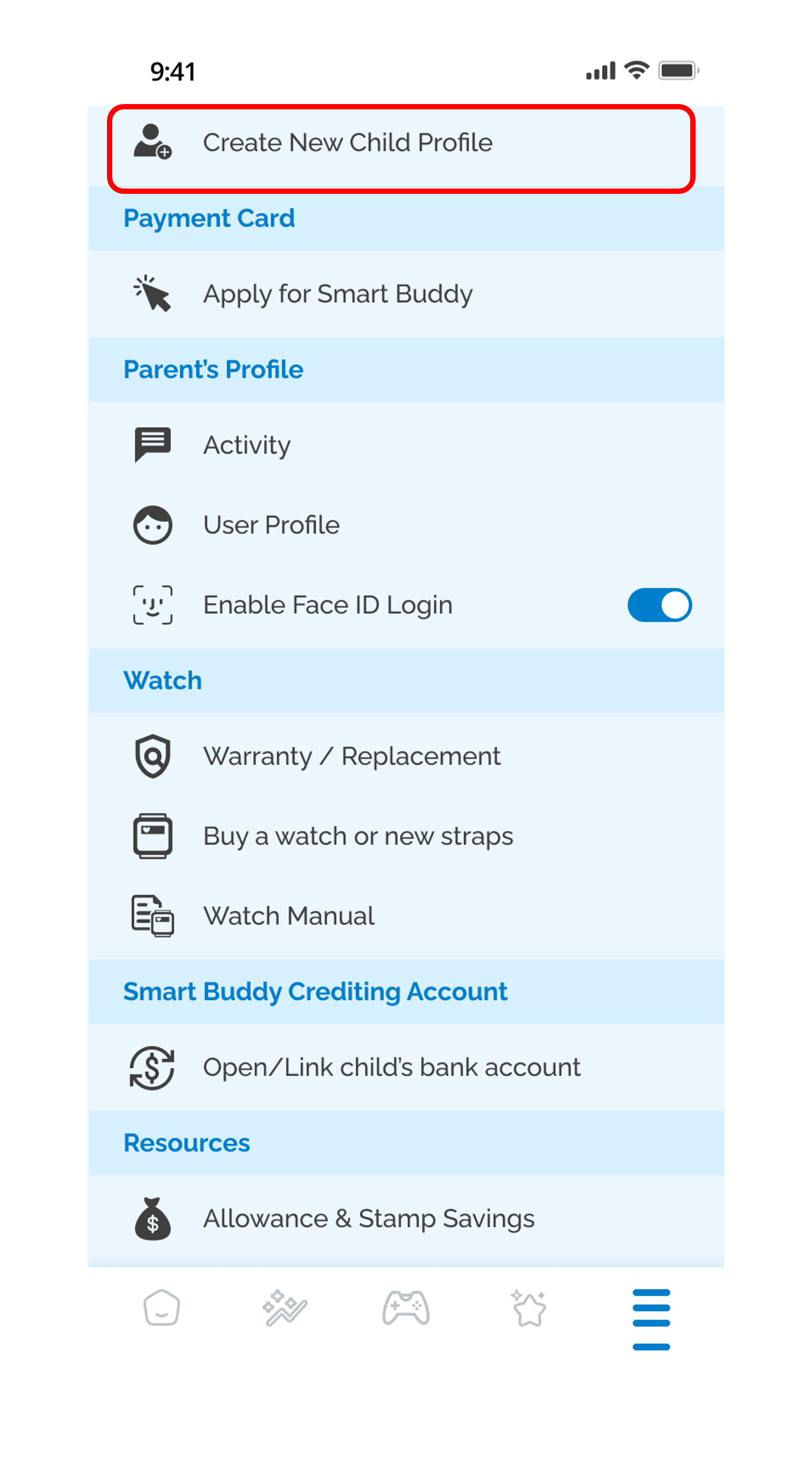
Tap on the Hamburger icon in the main dashboard.
2
Step 2
Tap Create New Child Profile and follow the instructions to create new child profile.
3
Step 3
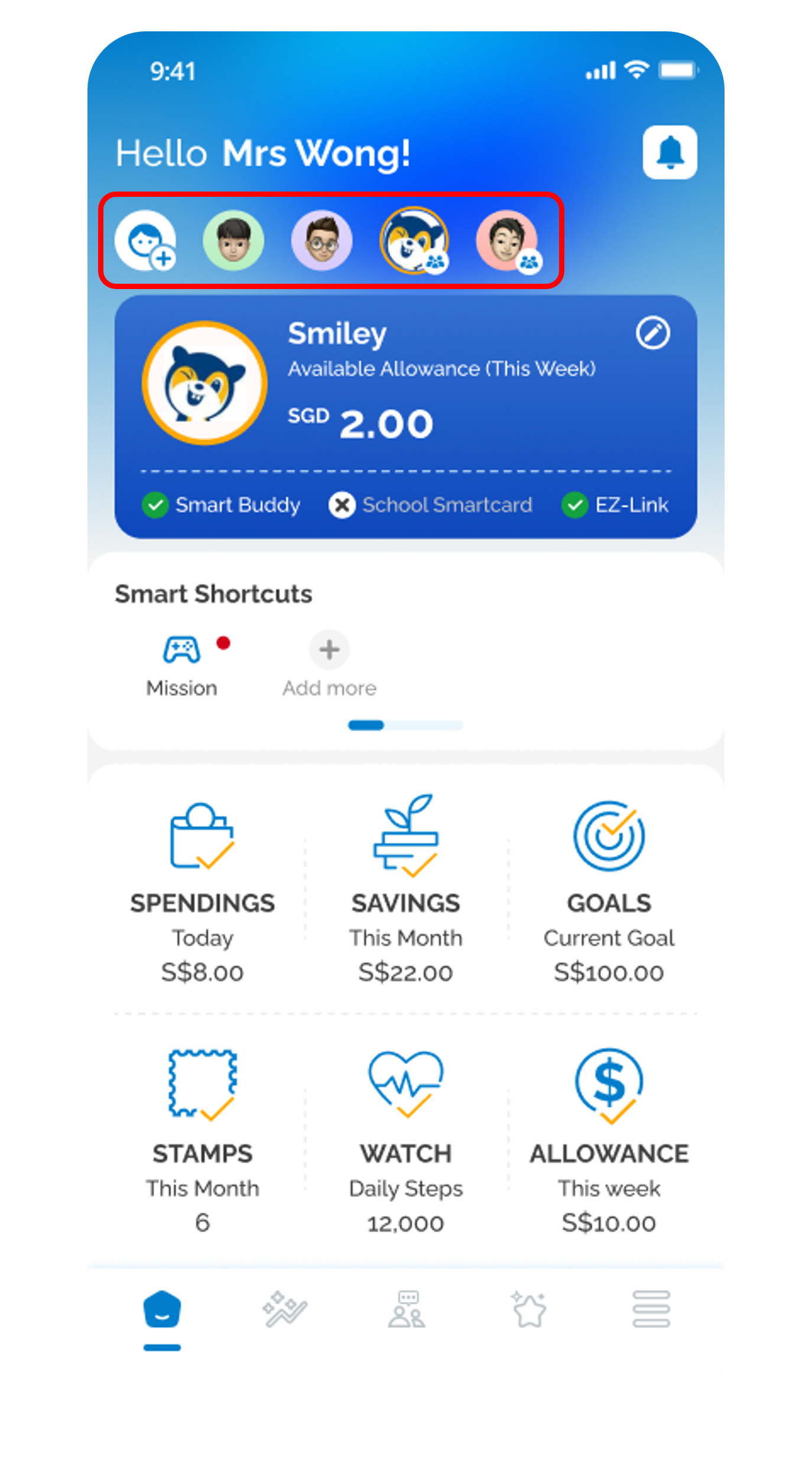
Tap on the different child profiles on the main dashboard to toggle between all the different child profiles which you had created.
Get the latest POSB Smart Buddy app now!
phone frame
slider
slider
slider
slider
slider
slider
1
Step 1
Tap on the Hamburger icon in the main dashboard.
2
Step 2
Tap User Profile.
3
Step 3
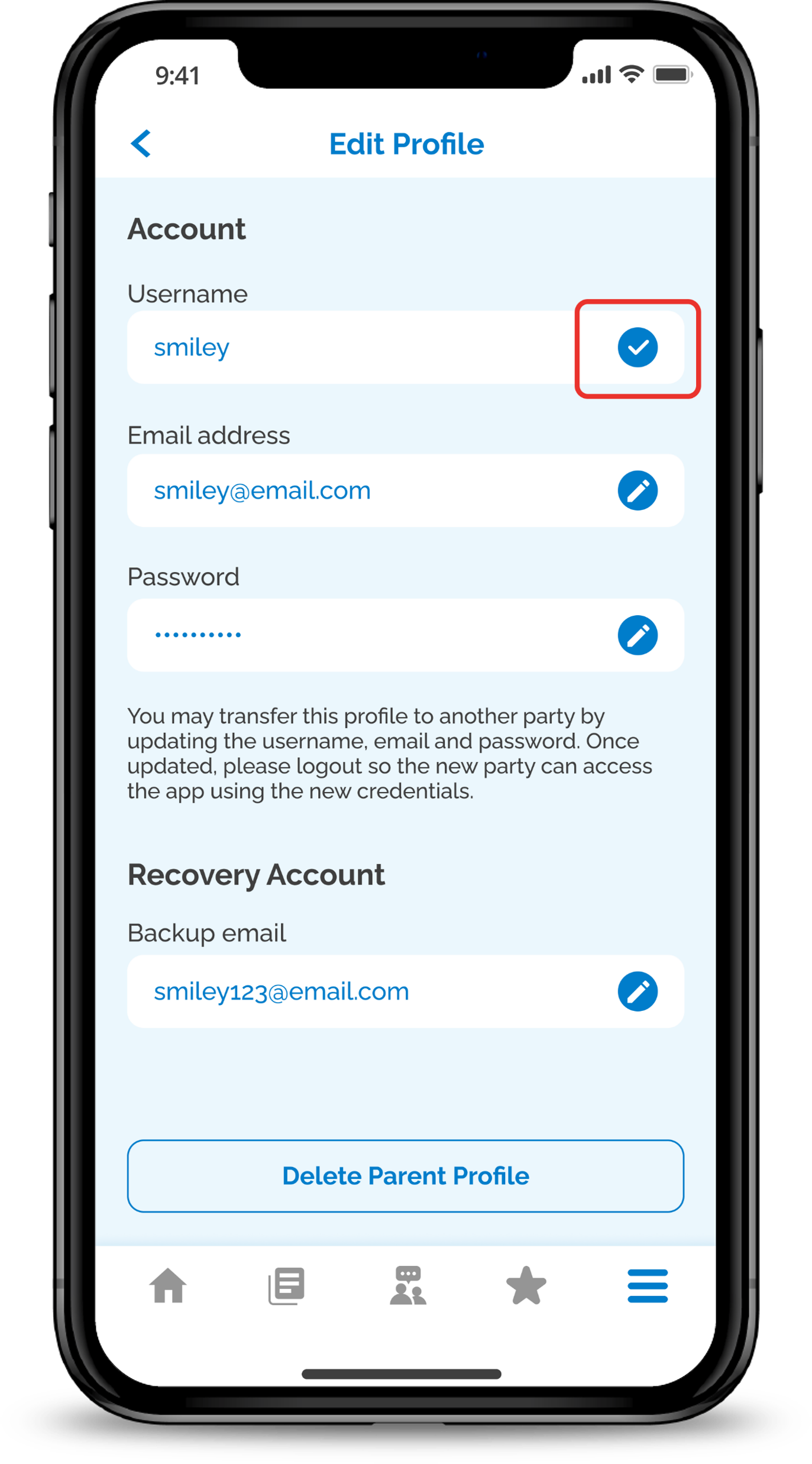
Edit the Username and tap on the tick icon to confirm.
4
Step 4
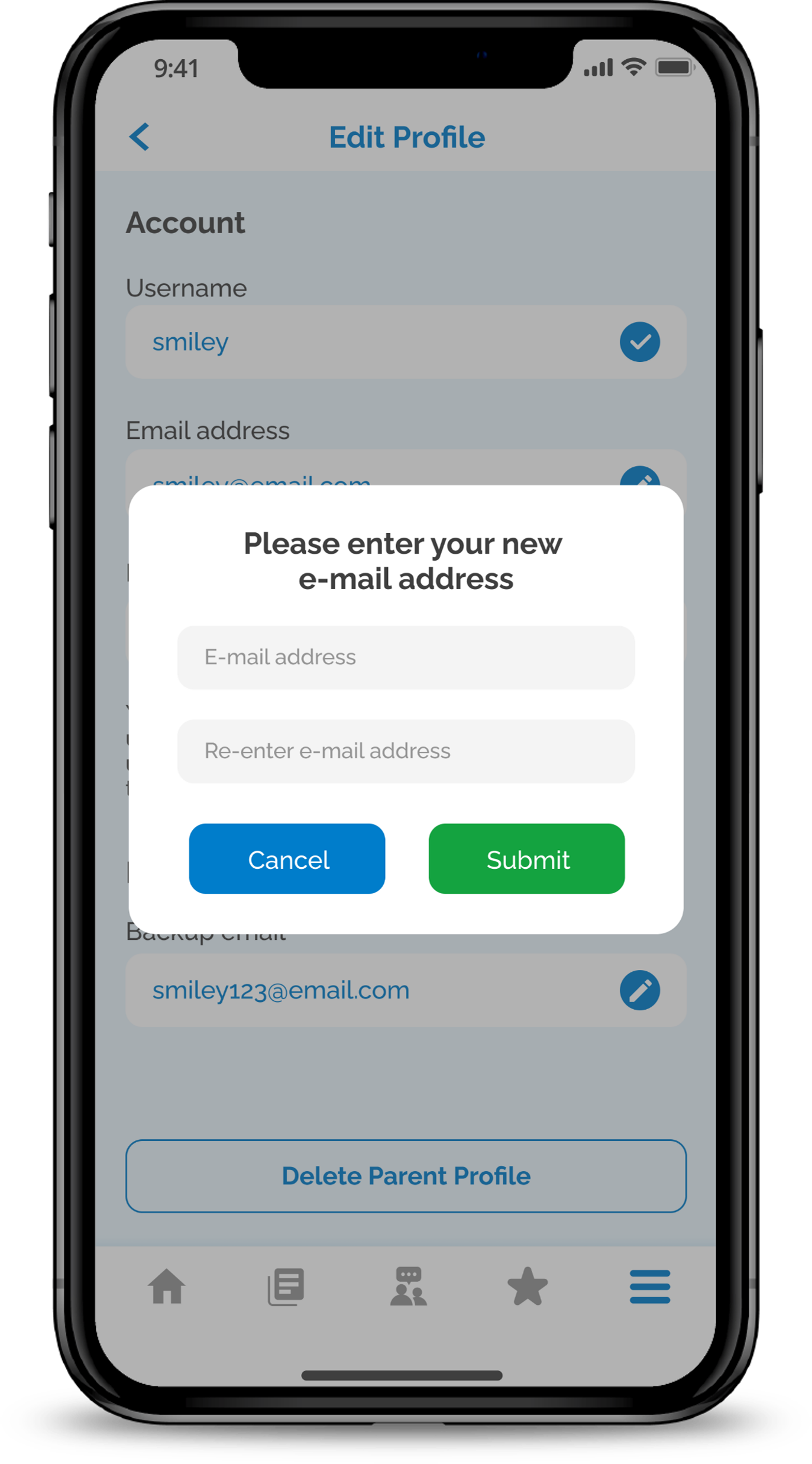
Enter your new Email Address and input your current password.

Type in the verification code received in your new email.
5
Step 5
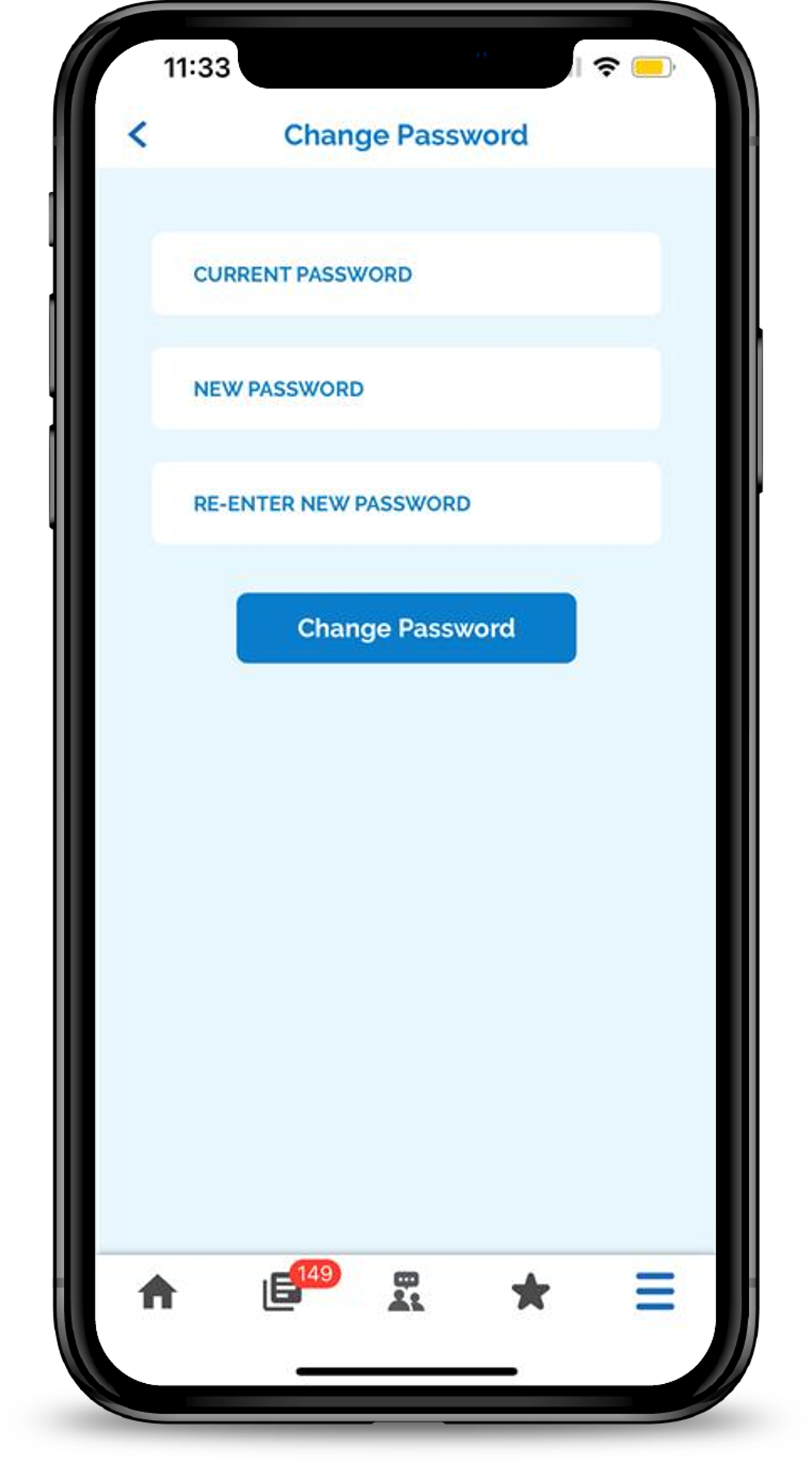
Edit the password by entering your old and new password. Tap Change Password to proceed.
6
Step 6
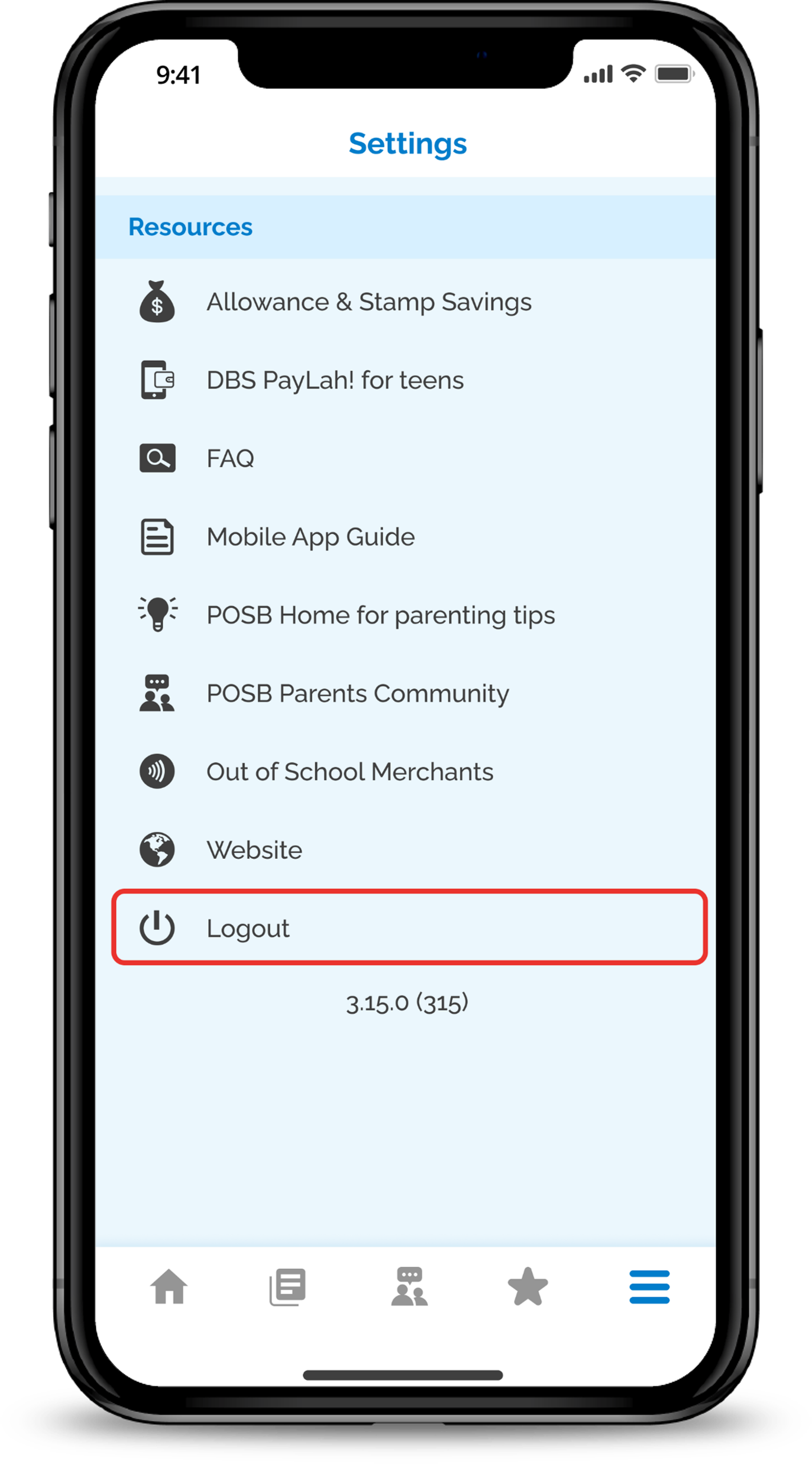
Log out to let new user try signing in.
Get the latest POSB Smart Buddy app now!
phone frame
slider
slider
1
Step 1
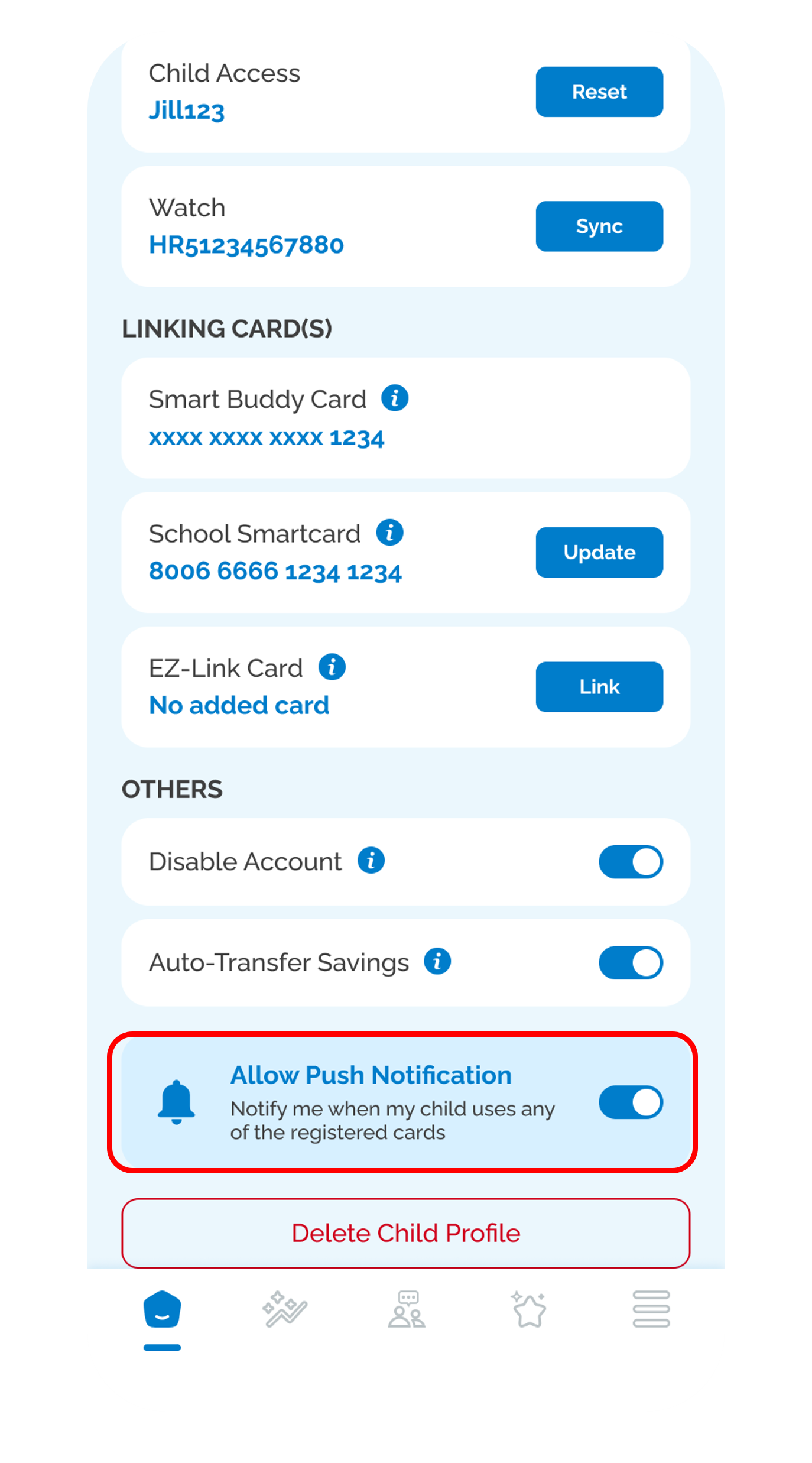
Tap on the Pencil icon in the main dashboard.
2
Step 2
Turn on the Push Notification button to receive real time spend notification on any of the linked card.
Get the latest POSB Smart Buddy app now!
More information

  • Don’t have a Smart Buddy Card? You may download the Smart Buddy App to link your Child’s EZ-Link Card or School Smartcard to track their expenses in school.
Was this information useful?

We welcome your feedback

Information is easy to understand and find
Information is useful to answer your inquiries completely