







To set up your Digital Token:
- Tap on “My physical token is damaged/lost” link to request for a registration code.
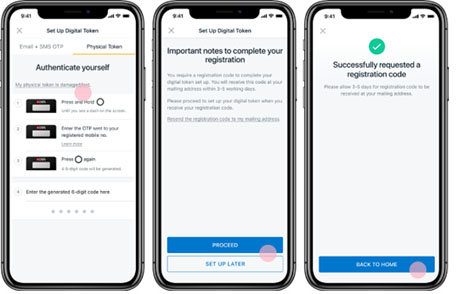
- A registration code will be mailed to your mailing address on our records. Please allow 3-5 working days for the mail to reach you.
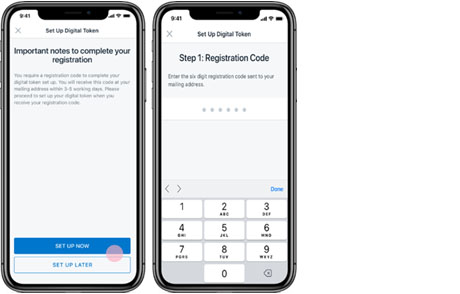
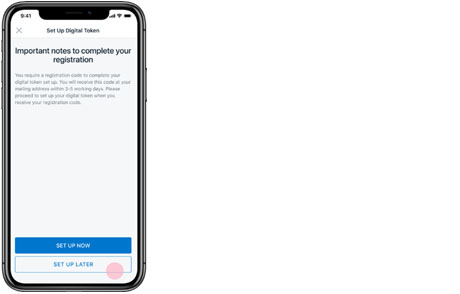
- Upon receipt of the registration code, log in to digibank/iWealth and tap on “Set up now”.
- Enter the registration code and follow on-screen instructions.
If you have changed mobile devices, you will be prompted to set up your Digital Token when you first log in to digibank/iWealth app on the new device.
Upon successful set up, the Digital Token on your previous device will be automatically deregistered. For security, each customer can only have one device with a Digital Token.
For digibank/iWealth mobile transactions, authentication is done seamlessly in the background.
For digibank online, eNets and eCommerce transactions, you may authenticate your transactions by taking the following steps:
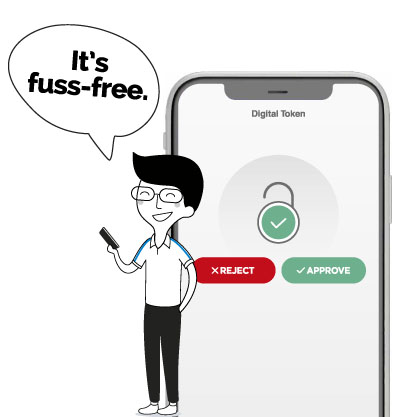
1) Tap on the push notification sent to your mobile > Tap on “Approve” button to complete your authentication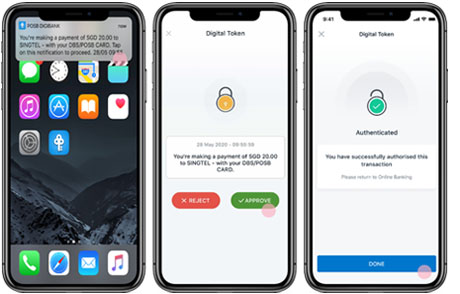
and/or
2) Launch digibank/iWealth app (Log in is not required) > Tap on “Digital Token” icon > Tap on “Approve” button to complete your authentication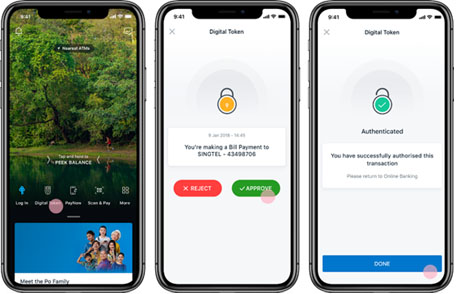
Please ensure that you have enabled push notification and allowed permissions for digibank/iWealth app to send you such notifications.
For iPhone users, to enable push notification, go to your phone settings > select notifications > select on “DBS digibank SG” or “iWealth SG” > turn on “Allow Notifications”.
For Android users, to enable push notification, go to your phone setting > select notifications > select on “DBS digibank SG” or “iWealth SG” > turn on notifications.
Note: Push notifications may not be received if you are in a low network coverage area.
Please ensure that your digibank/iWealth app is up to date. You may delete your digibank/iWealth app and reinstall the latest version.
Please download the digibank/iWealth app onto your new device. You will then be prompted to set up your Digital Token when you first log in.
Upon successful set up, the Digital Token on your previous mobile device will automatically be deregistered.