POSB logo
This Search function on our website will help you to find the information that you need easilyThis Search function on our website will help you to find the information that you need easilyThis Search function on our website will help you to find the information that you need easily
POSB Payroll Account For Work Permit Holders

Step 1: Activate your DBS Visa Debit Card or account at the nearest DBS/POSB ATM

Remember: Wait for your PIN mailer before heading to the ATM!

Locate the nearest DBS/POSB ATM.

Steps for account/card activation

  • Insert your New ATM/Debit Card into the ATM.
  • Enter your Card PIN2.
  • Select More Services.
  • Select Cards/PIN/iBanking/Phonebanking.
  • Select Activate Card.
  • Follow instructions on the ATM screen to complete activation.

2 Note: The Card PIN can be found in a separate letter sent to you.

Note: The Identity Number refers to the Malaysian IC number for Malaysian citizens, and the passport Number registered with the bank for all others.

Step 2: Update your personal details with Singpass

Step 1
Click here to start.

Step 2
Key in particulars.

Step 3
Tap on ‘update with Singpass’.

Step 4
Tap QR code to log in with Singpass app.

Step 5
Tap on ‘I agree’.

Step 6
Confirm the information & Click ‘Save details’.

Step 7
Click ‘Next’.

Step 8
Click ‘Submit’.

Note: Please ensure that your personal details, including your contact information (mobile and email), are updated with Singpass before proceeding to update your record with us.

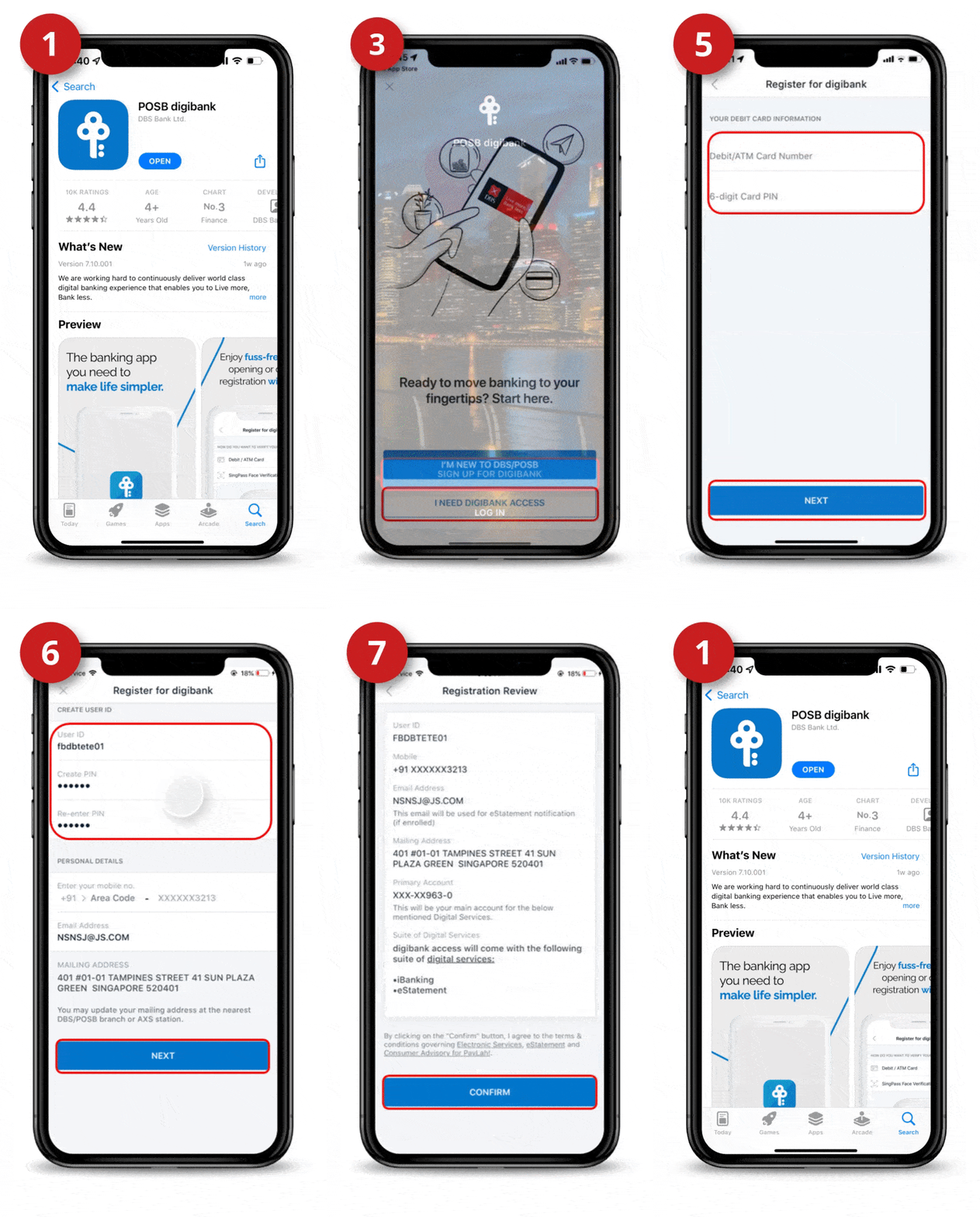
Step 3: Register for digibank

Step 1
Download the digibank Mobile app from the App Store, Google Play or AppGallery.

Step 2
Launch the digibank Mobile app and tap on Sign up for digibank.

Step 3
Tap I need digibank access.

Step 4
Select Debit/ATM Card.

Step 5
Enter your Debit/ATM Card Number, 6-digit Card PIN and tap Next.

Step 6
Complete your Credentials by inputting your preferred User ID & PIN. Verify your mobile number, email address, mailing address and tap on Next.

Step 7
Review and Confirm the details and tap on Confirm.

Step 8
Your digibank onboarding is completed. Tap on Proceed to digibank to Set up your Digital Token next.

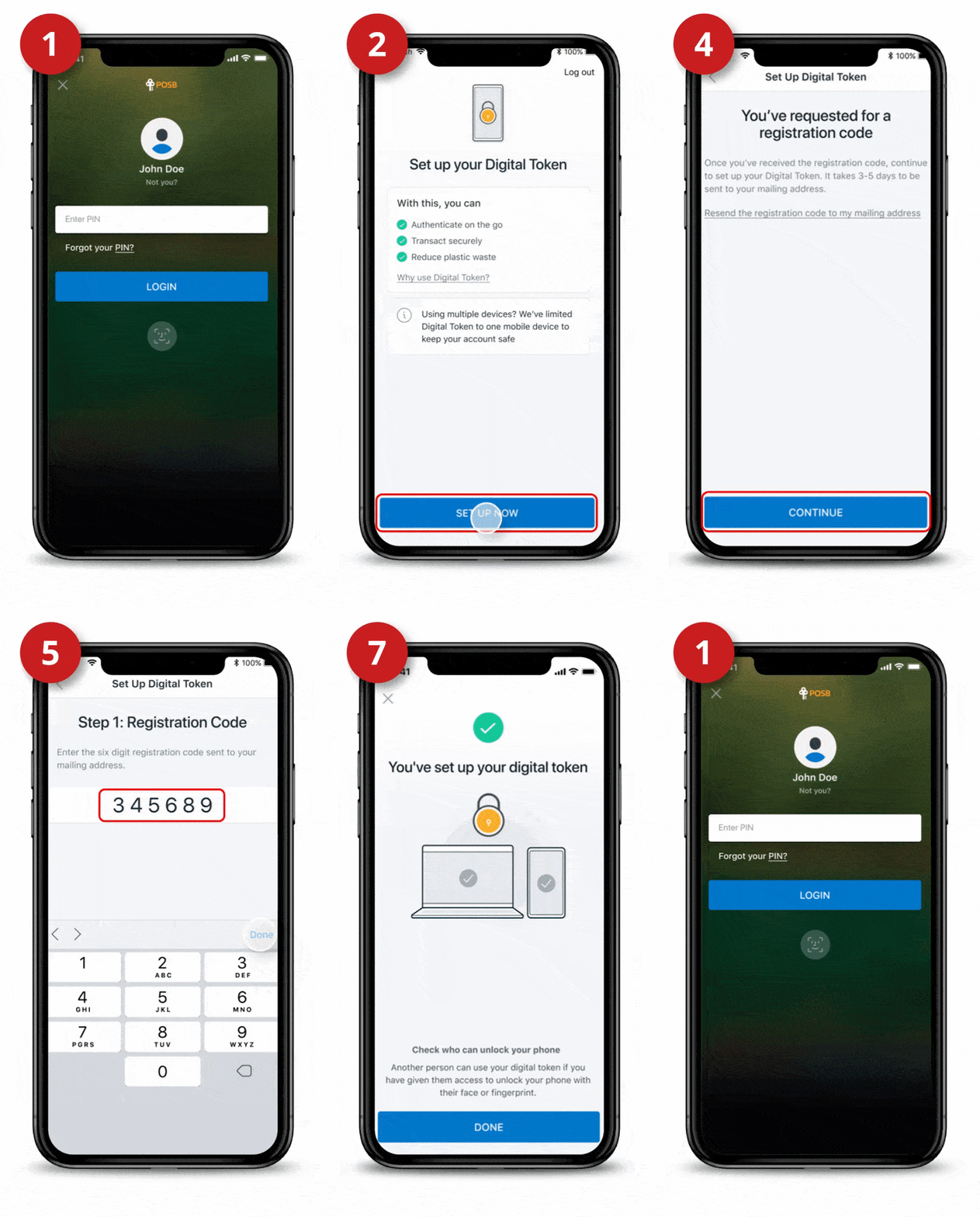
Step 4: Set up Digital Token

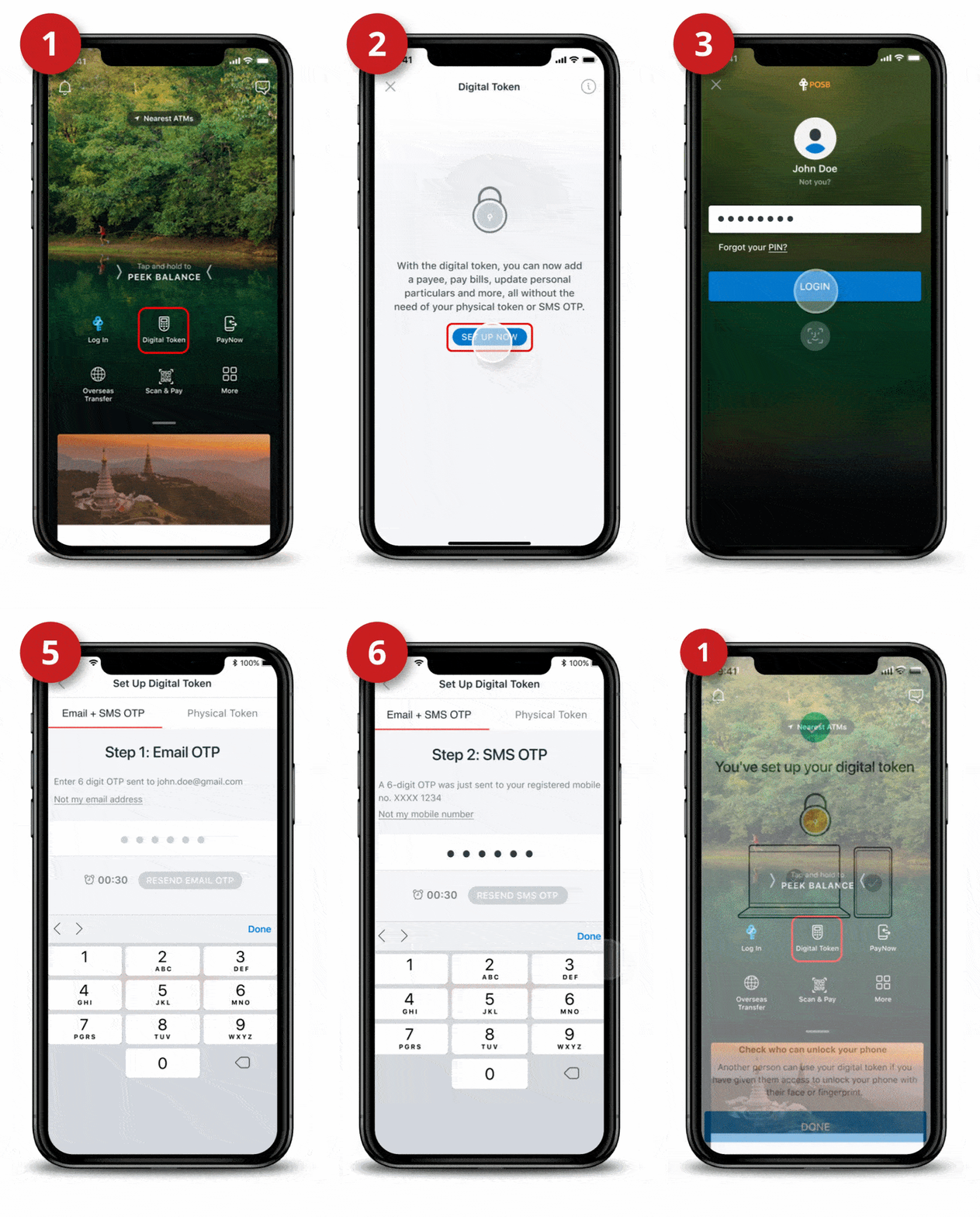
Use your registered Email Address and SMS OTP


Step 1
Launch your digibank App and select Digital Token.

Step 2
Tap on Set Up Now.

Step 3
Log in to digibank Mobile with your Touch / Face ID or digibank User ID & PIN.

Step 4
Tap on Set Up Now.

Step 5
Enter the 6 digit Email OTP sent to your registered email address.

Step 6
Enter the 6 digit SMS OTP sent to your registered mobile number.

Step 7
You've set up your Digital Token.

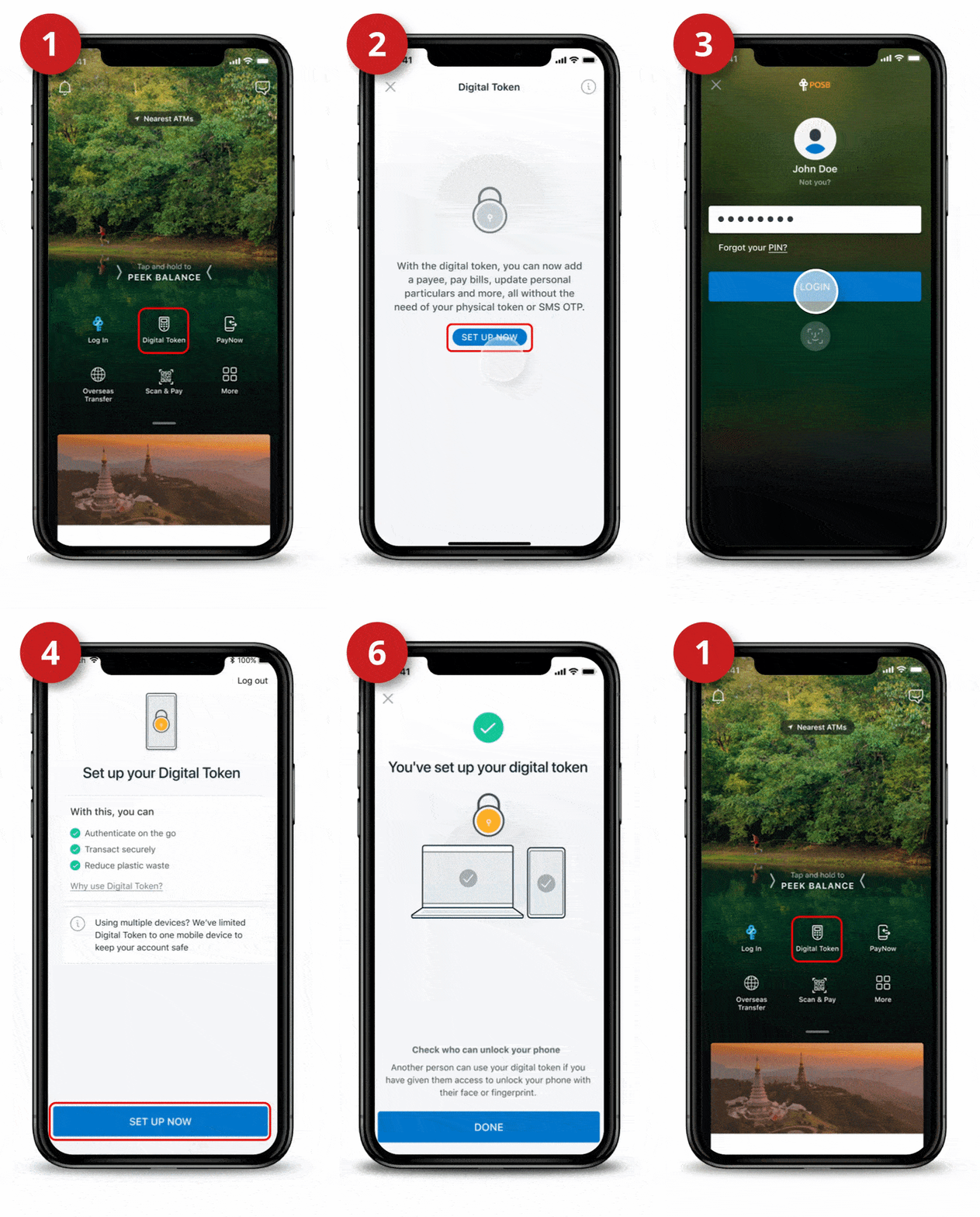
Use your DBS Secure Device (Physical Token)


Step 1
Launch your digibank App and select Digital Token.

Step 2
Tap on Set Up Now.

Step 3
Log in to digibank Mobile with your Touch / Face ID or digibank User ID & PIN.

Step 4
Tap on Set Up Now.

Step 5
Select Physical Token and a 6 digit SMS OTP will be sent to your registered mobile number. Follow the on-screen instructions, enter the 6 digit SMS OTP into your Physical Token and the generated 6 digit code into your digibank App.

Step 6
You've set up your Digital Token.

Set up with changes to your Email Address and without DBS Secure Device (Physical Token)


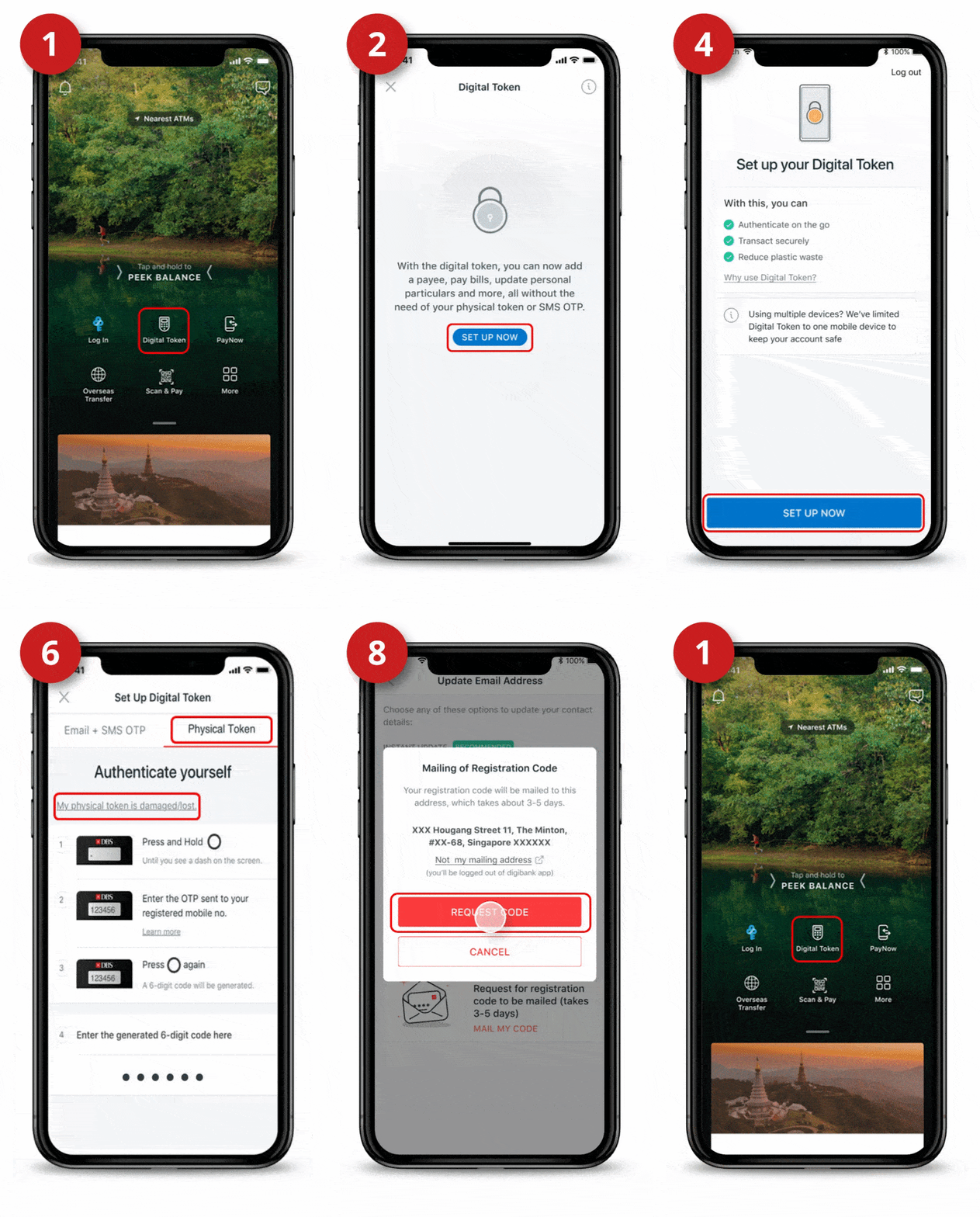
Requesting for Registration Code

Step 1
Launch your digibank App and select Digital Token.

Step 2
Tap on Set Up Now.

Step 3
Log in to digibank Mobile with your Touch / Face ID or digibank User ID & PIN.

Step 4
Tap on Set Up Now.

Step 5
Confirm or edit your Email Address and tap Next.

Step 6
Tap My Physical Token is Damaged/Lost if you do not have a Physical Token with you.

Step 7
Tap Mail My Code for us to mail the registration code to you.

Step 8
Ensure your mailing address is correct and tap Request Code to proceed.

Step 9
Request for registration code is Completed.

Please allow 3-5 working days for the registration code to be sent to your registered mailing address.

Step 1
Launch your digibank App. Log in to digibank Mobile with your Touch / Face ID or digibank User ID & PIN.

Step 2
Tap on Set Up Now.

Step 3
Confirm your Email Address and tap Next.

Step 4
Tap Continue to proceed with the registration.

Step 5
Enter the 6-digit registration code sent to your registered mailing address.

Step 6
Enter the 6-digit SMS OTP sent to your registered mobile number and follow on-screen instructions.

Step 7
You've set up your Digital Token.

Card Replacement

Step 1
Log in to digibank mobile with your Touch / Face ID or digibank User ID & PIN.

Step 2
Tap on ‘More’.

Step 3
Under Manage Cards & Loans, select Replace/Block Card.

Step 4
Select the Reason for Replacement.

Step 5
Select the Card you wish to replace.

Step 6
Enter Your Name to appear on the card. The name should not exceed 19 characters and it should not include any special symbols. Once done, tap on Next.

Step 7
Review your request and tap Replace Card.

Step 8
Your new card will be sent to you within 3 to 5 business days.

Send Money Home With DBS Remit

send money with dbs remit image

Transfer funds to your loved ones back home anytime, anywhere, with $03 fees on the same day via DBS Remit.

3 Terms and conditions apply.


How to add Payee for DBS Remit?

  • Log in to digibank Mobile with your Touch / Face ID or digibank User ID & PIN.
  • Tap Pay & Transfer and select Overseas.
  • Tap Add Overseas Recipient and select the Country.
  • Enter your recipient's Bank Details followed by their Account & Personal Details.
  • Tap Next to review your recipient's details and tap Add Recipient Now.
  • Follow the 2-Factor Authentication Instructions to complete the request.

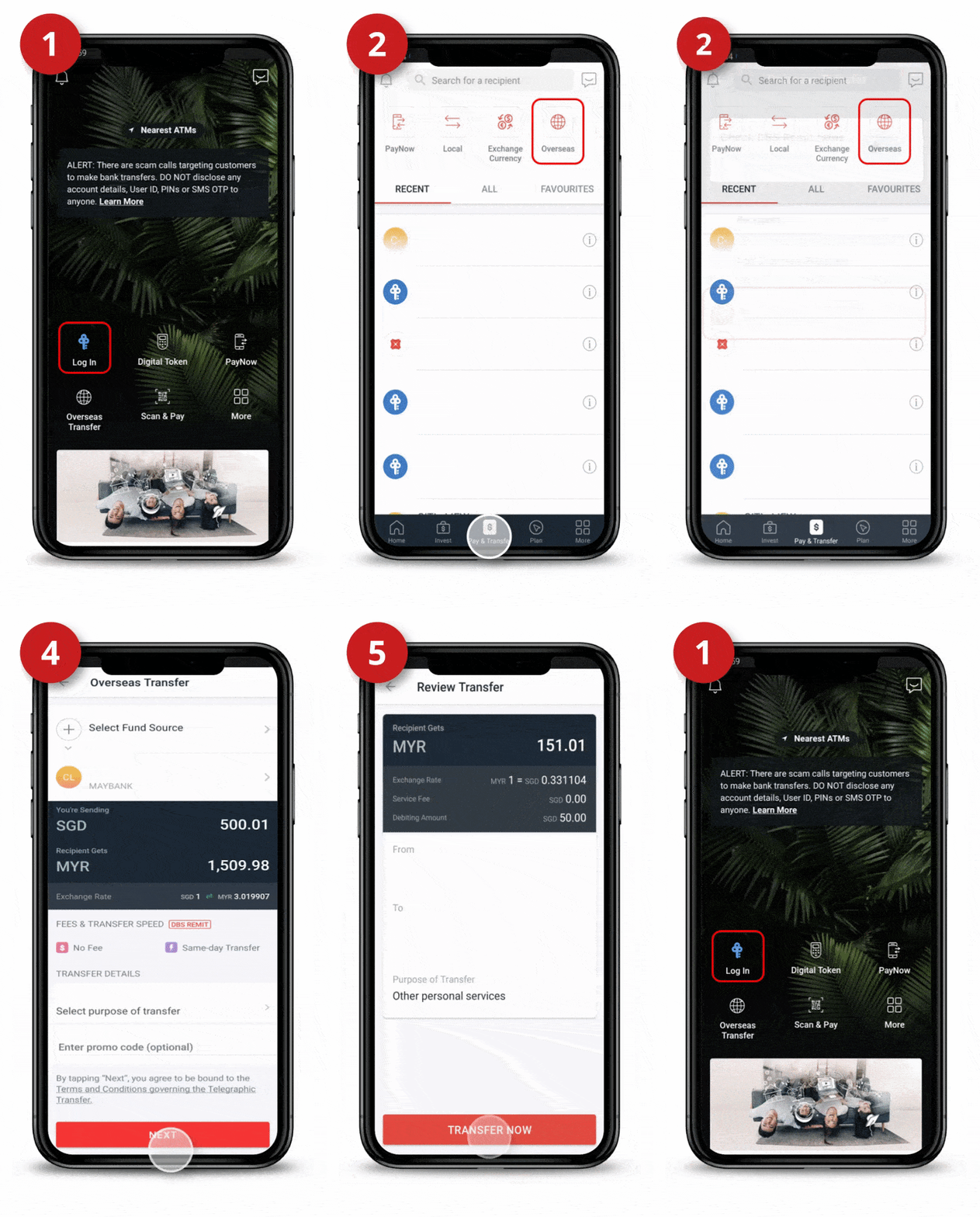
How to transfer overseas?
Step 1
Log in to digibank Mobile with your Touch / Face ID or digibank User ID & PIN.

Step 2
Tap Pay & Transfer followed by the Overseas icon.

Step 3
Select the recipient you wish to make transfer to.
(If the recipient is not in your pre-arranged list, follow the steps in Add Overseas Funds Transfer Recipient)

Step 4
Select the Fund Source, Amount, Purpose of Transfer. Tap Next.

Step 5
Review the Transfer details and tap Transfer Now.

Step 6
Your overseas funds transfer transaction has been submitted for Processing.

Send and Receive Money Locally

send and receive money locally image

Just use PayNow or PayLah! on your mobile phone with just a few taps! No need for ATMs, or bulky wallets.


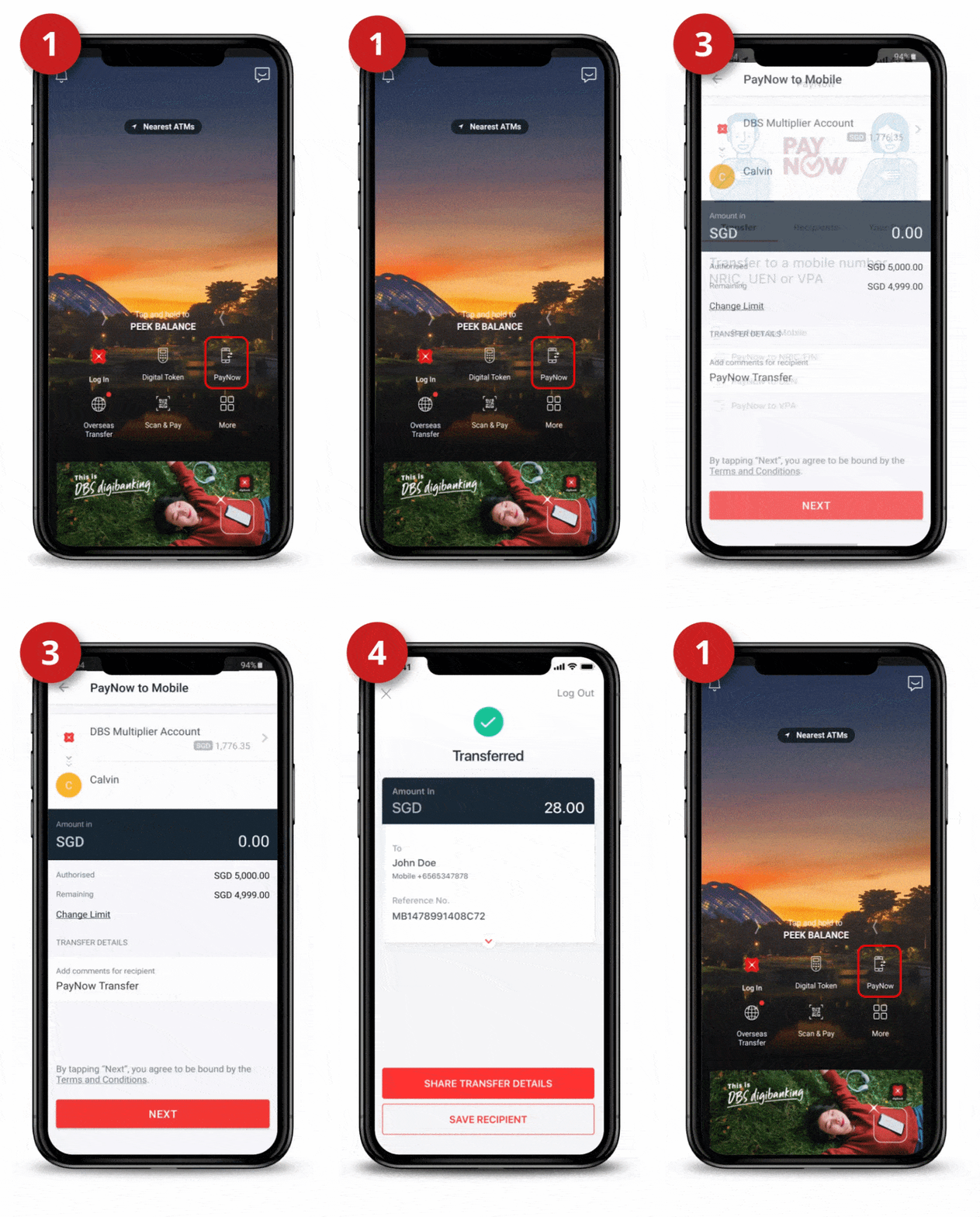
PayNow
Step 1
Launch your digibank mobile app, tap on PayNow and log in with your Touch / Face ID or digibank User ID & PIN.

Step 2
Select the mode of transfer and enter recipient's details. Tap Next.

Step 3
Select account to transfer money from and enter the amount you wish to transfer. Input your comments(if any) and tap Next.

Step 4
Review your transfer and tap Transfer Now to complete your transaction.


Note: Please verify and confirm the recipient’s nickname before transferring the money.

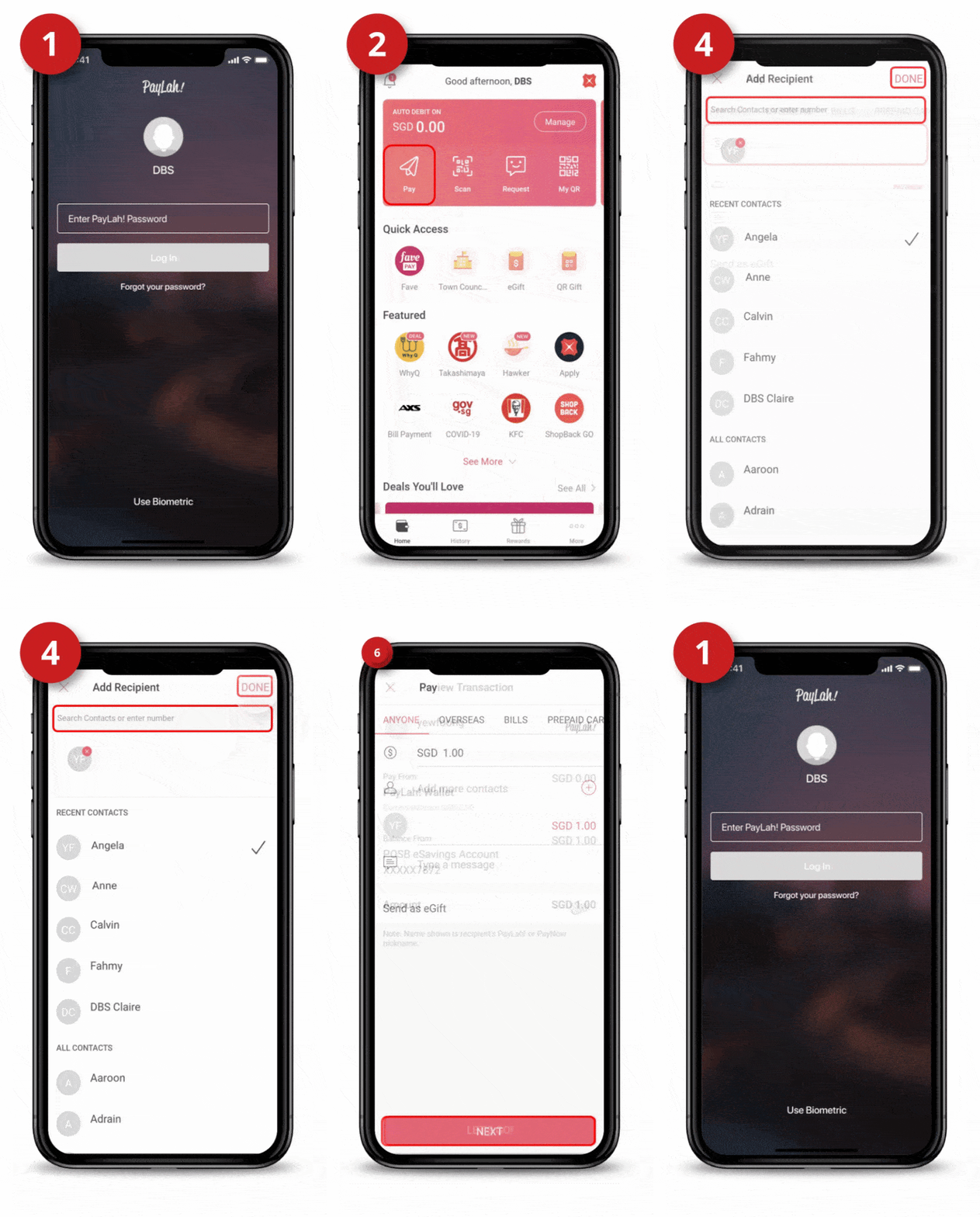
PayLah!

Step 1
Log in to DBS PayLah! with your Touch / Face ID or PayLah! Password.

Step 2
Under Home, tap Pay.

Step 3
Under Anyone tab, enter the Amount you wish to send.

Step 4
Search the Recipient(s) from your contact list or enter their Mobile Number and tap Done.

Step 5
Type a message or enable Send as eGift (if any) and tap Next.

Step 6
Verify the transaction and tap Let's go to complete the transaction.


Note: Please verify and confirm the recipient’s nickname before transferring the money.

Shop & Commute with DBS Visa Debit Card

shop and commute with dbs visa debit card image

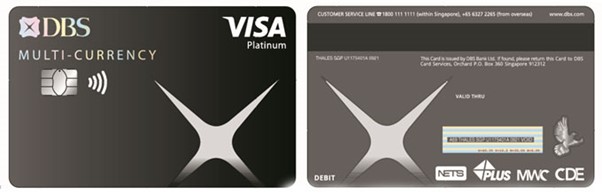
Use your trusty DBS Visa Debit Card to shop, ride, and earn rewards with your spend. Need cash? Just withdraw from any ATM with your card and PIN.

Up to 4% Cashback on what you want, every time

Get up to 4% cashback when you spend on online food delivery, local transport and in foreign currency (including online purchases). Simply spend a minimum of S$500 on Visa and keep your cash withdrawals to S$400 and below in the same month.

Tap and SimplyGo

Tap and SimplyGo on buses and trains without having to top up.

No foreign exchange fee

When you link your DBS Visa Debit Card to any multi-currency account with DBS.


Transaction Limits for DBS Visa Debit Card (for Work Permit Segment)

Type of limitDefault transaction limit
Debit spend limitS$200
ATM Cash withdrawal limit4S$1,000
NETS Point-of-sale limitS$1,000

Important note:

4 The total amount of cash that you can withdraw per day at both local and overseas ATMs is capped. This daily cash withdrawal limit applies regardless of the number of cards you have. Click here for details.

Explore more

SavingsMaid